
Speed up your PC with 10 proven tips to boost performance fast, free up storage, reduce lag, and optimize Windows for smoother and faster computing.
One of the most effective ways to speed up a slow computer is by managing startup programs. Many applications automatically launch when your system boots, consuming valuable resources and extending boot times.
You can easily disable unnecessary startup programs through the Task Manager on Windows or System Settings on macOS.
According to Microsoft, reducing the number of programs that run at startup can significantly improve system responsiveness and reduce boot time.
Another common culprit behind sluggish performance is insufficient disk space, especially on systems using traditional hard drives.
When your drive is nearly full, your PC struggles to read and write data efficiently. Regularly cleaning up temporary files, uninstalling unused programs, and moving large files to external storage or cloud services like Google Drive speed up your PC can free up space and enhance performance.
Solid-state drives (SSDs) also offer faster data access, and upgrading from an HDD to an SSD is one of the most impactful hardware improvements you can make.
Keeping your operating system and drivers up to date plays a crucial role in maintaining optimal performance. Software updates often include performance enhancements, security patches, and bug fixes that can resolve slowdowns.
For Windows users, enabling automatic updates through Windows Update ensures your system stays current. Similarly, macOS users should regularly check for updates in the App Store to benefit from Apple’s latest optimizations.
Finally, malware and unwanted software can severely impact your computer’s speed. Running regular scans with trusted antivirus tools such as Windows Defender or third-party solutions like Malwarebytes can detect and remove threats that drain system resources.
Additionally, avoiding suspicious downloads and using ad-blockers on browsers like Google Chrome helps prevent malicious scripts from slowing down your browsing experience and overall system performance.

Clean Up Your Hard Drive to Speed Up Your PC
Over time, your hard drive can become cluttered with temporary files, application caches, and unused software, all of which consume valuable storage space and may slow down your system.
These files accumulate silently in the background as part of normal computer use—web browsing, software updates, and system operations—all leaving behind data that’s often no longer needed. This digital debris not only takes up room but can also contribute to slower boot times and reduced overall performance.
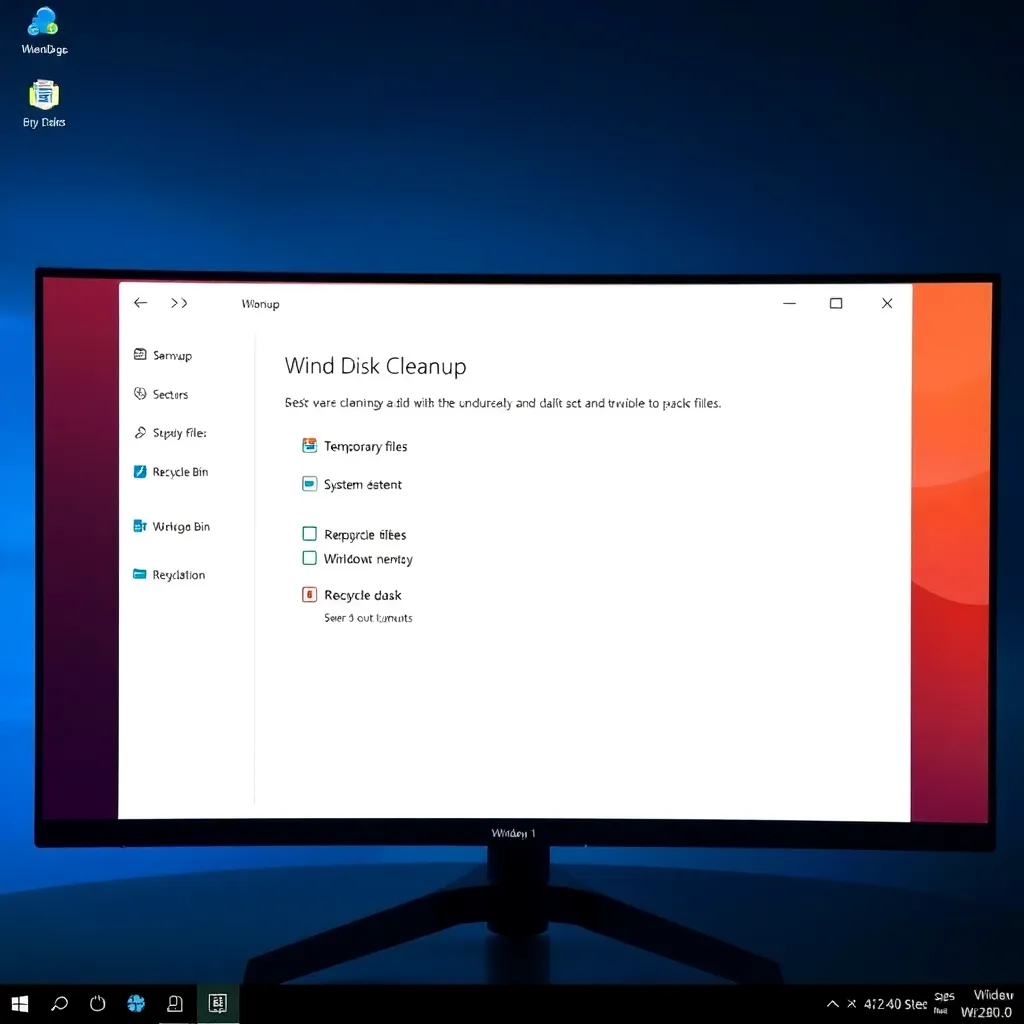
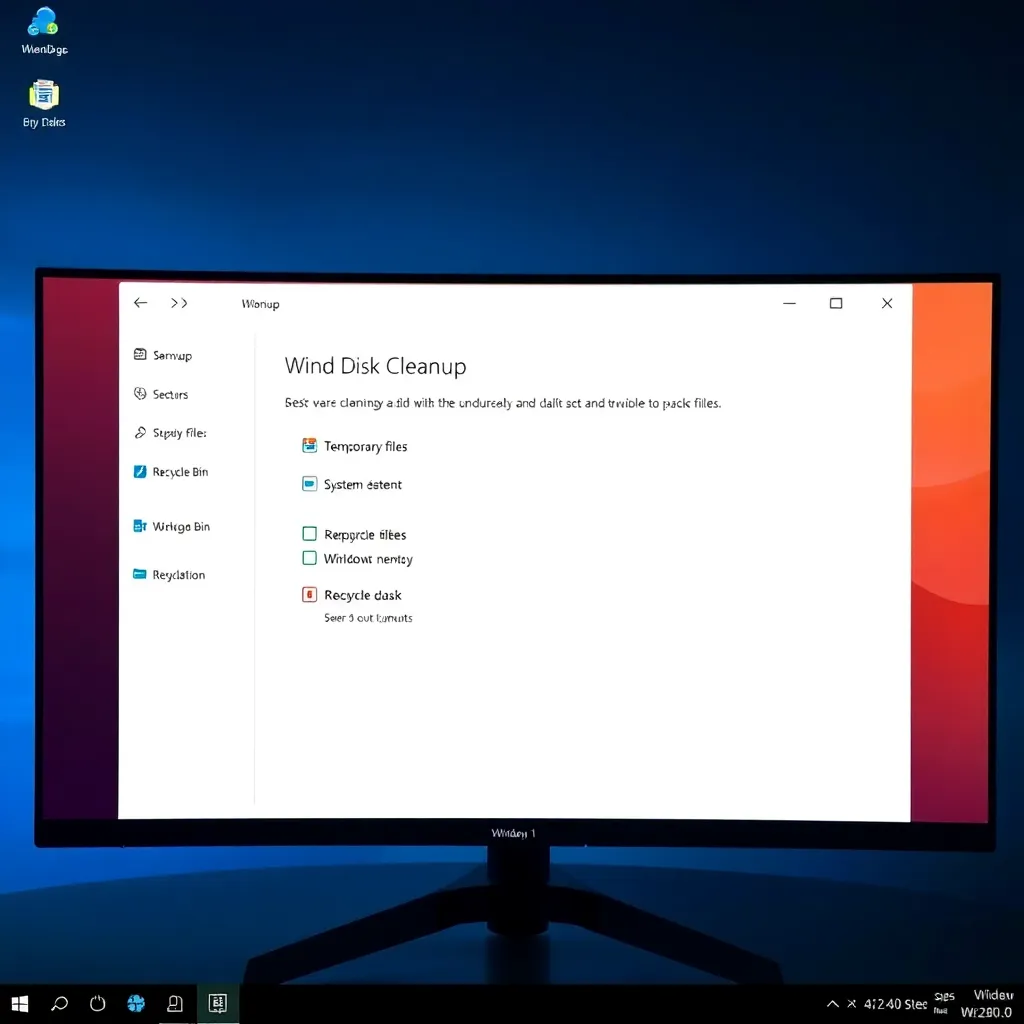
On Windows systems, built-in utilities like Disk Cleanup can help identify and remove unnecessary files safely. This tool scans your system for temporary files, system logs, and cached data, allowing you to reclaim gigabytes of storage with just a few clicks.
Regular use of Disk Cleanup is recommended by Microsoft to maintain optimal system health and performance over time.
In addition to clearing temporary files, uninstalling unused programs—especially pre-installed bloatware—can make a noticeable difference. Many computers come with software that runs in the background, consuming memory and processing power even when not in use.
Removing these applications through the Control Panel or Settings app helps streamline your system. Don’t forget to clear your browser’s cache as well; accumulated cookies and cached images can take up significant space and slow page loading times.
Maintaining a clean hard drive doesn’t require advanced technical skills, but it does require consistency. By scheduling regular maintenance and using trusted system tools, you can ensure your computer remains fast and efficient.
For more guidance on managing disk space, resources like Microsoft Support offer step-by-step instructions tailored to your version of Windows.
Upgrade to an SSD
Upgrading from a traditional hard disk drive (HDD) to a solid-state drive (SSD) is one of the most effective ways to breathe new life into an older computer.
Unlike HDDs, which rely on spinning disks and mechanical read/write heads, SSDs use flash memory to store data, resulting in significantly faster data access and transfer speeds. This translates to quicker boot times—often reducing startup to under 10 seconds—and faster loading of applications and files.
For everyday users and professionals alike, this improvement can dramatically enhance productivity and user experience.
NVMe (Non-Volatile Memory Express) SSDs, even at budget price points, outperform older SATA-based drives by leveraging the PCIe interface for higher bandwidth.
This means that modern NVMe SSDs can achieve read and write speeds multiple times faster than traditional HDDs. According to Tom’s Hardware, even entry-level NVMe drives offer substantial real-world performance gains, making them ideal for tasks ranging from photo editing to gaming.
The affordability and widespread availability of these drives have made SSD upgrades accessible to nearly every user.
Another advantage of SSDs is their durability and energy efficiency. With no moving parts, they are less prone to physical damage from drops or vibrations, making them especially suitable for laptops and portable devices. They also consume less power than HDDs, which can lead to longer battery life in mobile systems.
For those still relying on aging storage technology, making the switch to an SSD is not just an upgrade—it’s a transformation in system responsiveness and reliability.
For more information on choosing the right SSD for your system, resources like AnandTech provide in-depth reviews and benchmarks to help guide your decision.
Whether you’re upgrading a desktop or a laptop, installing an SSD remains one of the most cost-effective ways to extend the lifespan and usability of your hardware.
Manage Startup Programs to Speed Up Your PC Faster
Having too many programs set to launch at startup can significantly extend your computer’s boot time, leading to frustrating delays every time you turn on your machine.
These programs often include background services such as outdated updaters, manufacturer-specific utilities like printer tools, or third-party applications that don’t need to run immediately upon login.
While some startup items are essential for system functionality, many are not, and disabling them can free up valuable system resources.
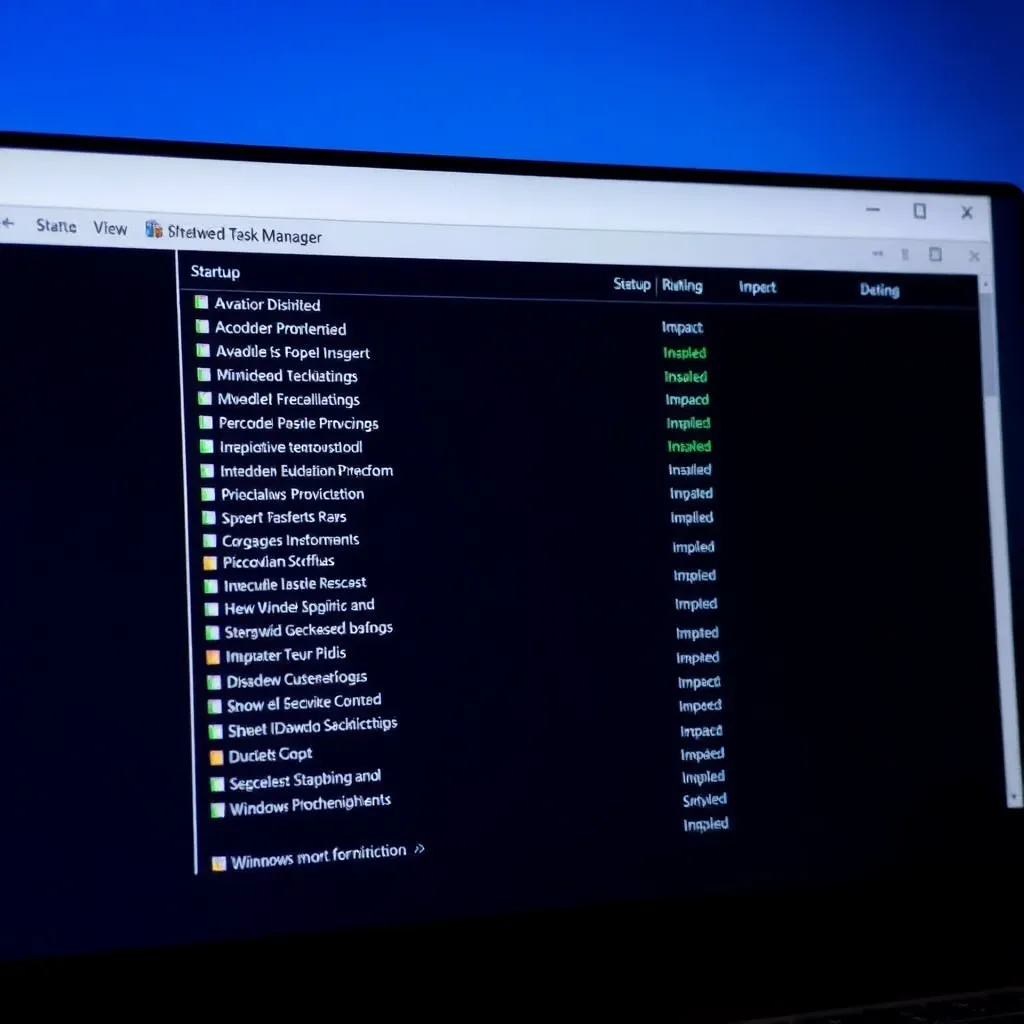
To manage these programs, open the Task Manager by pressing Ctrl+Shift+Esc, then navigate to the Startup tab. Here, you’ll see a list of applications that launch automatically with Windows, along with their impact on startup time—ranging from “Low” to “High.” Right-click any unnecessary entry and select “Disable” to prevent it from launching at startup.
Be cautious with unfamiliar items; when in doubt, research the program name online or consult documentation from trusted sources like Microsoft Support.
This simple optimization can lead to noticeably faster boot times and improved overall system responsiveness. It’s a good maintenance habit to review the Startup tab periodically, especially after installing new software, as some applications add themselves to startup without clear user consent.
For more detailed guidance on managing startup programs, visit How-To Geek, which offers comprehensive tutorials on Windows performance tuning.
Keep Your Software and Drivers Updated
Running outdated operating systems can significantly impact both the performance and security of your computer. Older versions of Windows may lack critical security patches, leaving systems vulnerable to malware and cyberattacks.
Microsoft regularly releases updates to address these vulnerabilities and improve system stability, making it essential to enable automatic updates or manually check for the latest patches through Microsoft’s official website.
Equally important are up-to-date drivers for key hardware components such as graphics cards, chipsets, and network adapters.
Outdated drivers can lead to poor system responsiveness, display issues, and connectivity problems. Using the built-in Device Manager in Windows allows users to check current driver versions and install available updates directly from the operating system.
For the most reliable and optimized performance, it’s recommended to visit the official website of your hardware manufacturer—such as NVIDIA, AMD, or Intel—to download the latest certified drivers.
This ensures compatibility with new software and security enhancements, maximizing both speed and system reliability over time.
Add More RAM
If your computer slows down when running multiple applications or struggles with demanding software like video editors and modern games, insufficient RAM might be the culprit.
Random Access Memory (RAM) is crucial for your system’s ability to handle active tasks efficiently. When RAM is maxed out, your PC relies more on slower storage drives, leading to performance bottlenecks.
Upgrading your RAM can significantly reduce lag and improve responsiveness during multitasking.
For most users, 16GB of RAM strikes the ideal balance between cost and performance, especially when working with modern operating systems and productivity suites.
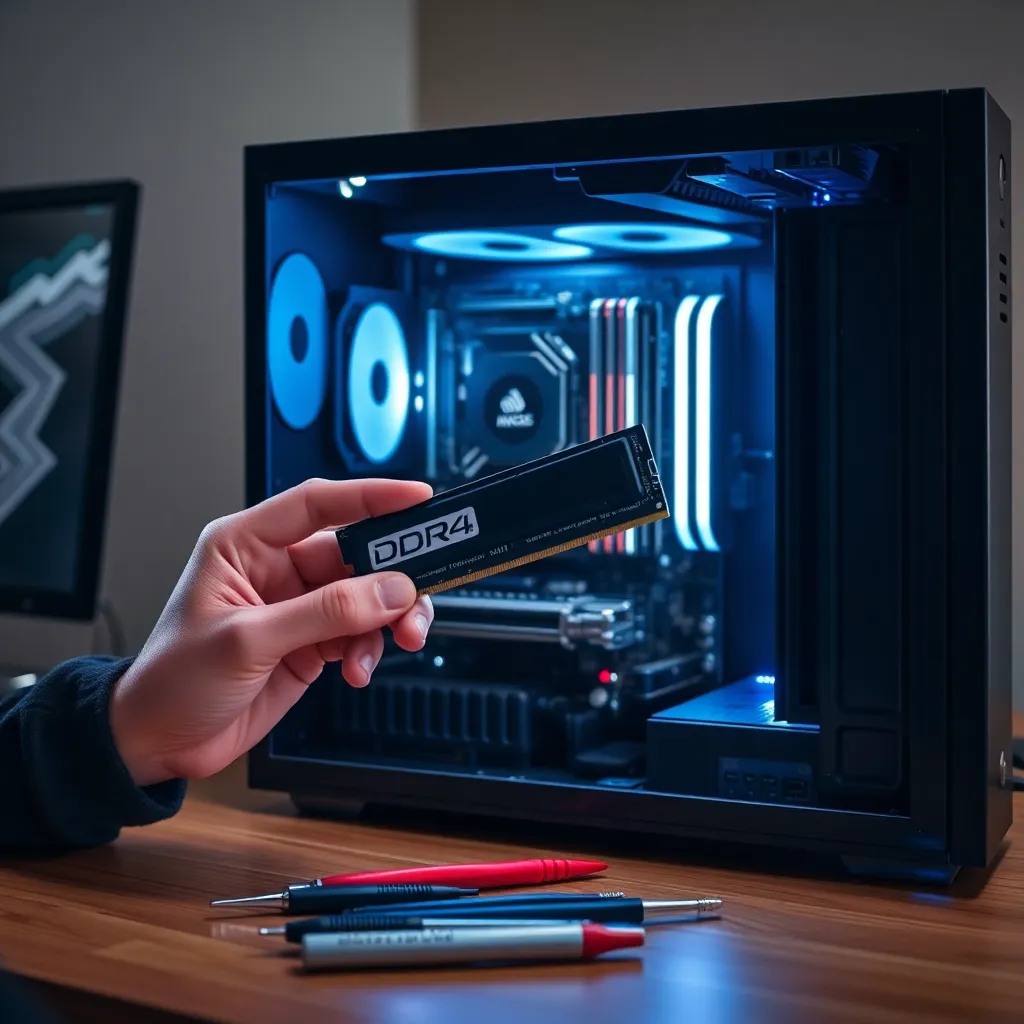
Gamers, content creators, and professionals running virtual machines or large datasets may even benefit from 32GB. Before purchasing new memory, verify your motherboard’s compatibility—check supported RAM type (such as DDR4 or DDR5), maximum capacity, and speed ratings.
Resources like the Crucial System Scanner can help identify the right RAM for your system.
Installing additional RAM is typically a straightforward process. Ensure your PC is powered off and unplugged, then ground yourself to prevent static damage.
Open your case, locate the DIMM slots on the motherboard, and insert the new modules firmly until they click into place. Once installed, power on your system and verify the new RAM is recognized in the BIOS or via Windows Task Manager.
With sufficient RAM, your system will handle background processes, browser tabs, and demanding applications more smoothly.
This upgrade is often more impactful than switching to a faster storage drive, particularly if you’re still using less than 8GB.
For detailed compatibility information, consult your motherboard manufacturer’s support page, such as ASUS Support or Gigabyte Support, to ensure a seamless upgrade.
Run a Malware Scan
Malware and unwanted programs often run silently in the background, consuming valuable CPU, memory, and disk resources without the user’s knowledge.
These malicious processes can significantly slow down system performance, cause frequent crashes, or lead to unresponsive applications.
Because they’re designed to remain undetected, users might not realize their device is compromised until symptoms become severe.
Running a full system scan using trusted antivirus software is a critical step in identifying and eliminating these threats. Microsoft Defender, built into Windows 10 and 11, provides robust real-time protection and regularly updated threat intelligence.
For added security, users can complement it with reputable third-party solutions like Malwarebytes or Avast, which offer specialized tools for detecting potentially unwanted programs (PUPs) and adware.
Removing malware not only restores optimal system performance but also safeguards sensitive personal information.
Threats like keyloggers, spyware, and ransomware are specifically designed to steal login credentials, monitor online activity, or encrypt files for extortion.
By proactively scanning and cleaning your system, you reduce the risk of data breaches and identity theft.
For best results, ensure your antivirus definitions are up to date and perform regular scans—especially after downloading new software or visiting unfamiliar websites.
Staying vigilant and maintaining updated security tools is essential in today’s evolving digital landscape.
More information on protecting your device can be found through official resources such as Microsoft’s security guide.
Conclusion: Restore Your PC’s Speed with Smart Maintenance
One of the most effective ways to boost your computer’s performance is by upgrading to a solid-state drive (SSD) if you’re still using a traditional hard disk drive (HDD).
SSDs offer significantly faster boot times, quicker file transfers, and improved system responsiveness. According to Crucial’s guide on SSDs, this single upgrade can transform an older machine into a much more capable system, making it feel like new without the cost of a full replacement.
Adding more RAM is another cost-effective upgrade that can greatly enhance multitasking and overall system fluidity, especially for users running memory-intensive applications or multiple programs simultaneously. Most modern operating systems and software benefit from at least 8GB to 16GB of RAM.
For guidance on selecting compatible memory, resources like Corsair’s memory compatibility tool can help ensure you choose the right type and speed for your motherboard.
Beyond hardware, routine software maintenance plays a crucial role in sustaining peak performance. This includes cleaning up unnecessary startup programs, keeping your operating system and drivers up to date, and regularly scanning for malware.
Tools built into Windows, such as Disk Cleanup and Task Manager, allow users to manage storage and monitor resource usage effectively—check Microsoft Support for official instructions on optimizing your PC.
Start with one or two changes—like disabling unused startup apps or installing an SSD—and observe how your system responds.
Gradual optimization not only helps identify what works best for your usage but also prevents overwhelming changes that could lead to instability.
With consistent care and smart upgrades, your computer can remain efficient and reliable well into the future.
