
The Windows Registry isn’t exactly user-friendly. And that’s why most people never bother opening it, let alone tweaking it. You may have also come across countless warnings telling you not to mess with it unless you know what you’re doing. But that doesn’t mean you should act like it doesn’t exist.
In fact, with the right registry tweaks and a careful approach, you can improve performance, remove annoyances, and make Windows behave the way you want. Of course, you still shouldn’t jump in blindly. Always create a registry backup so you can undo any changes if something goes wrong.
Skip the start menu and desktop shortcuts
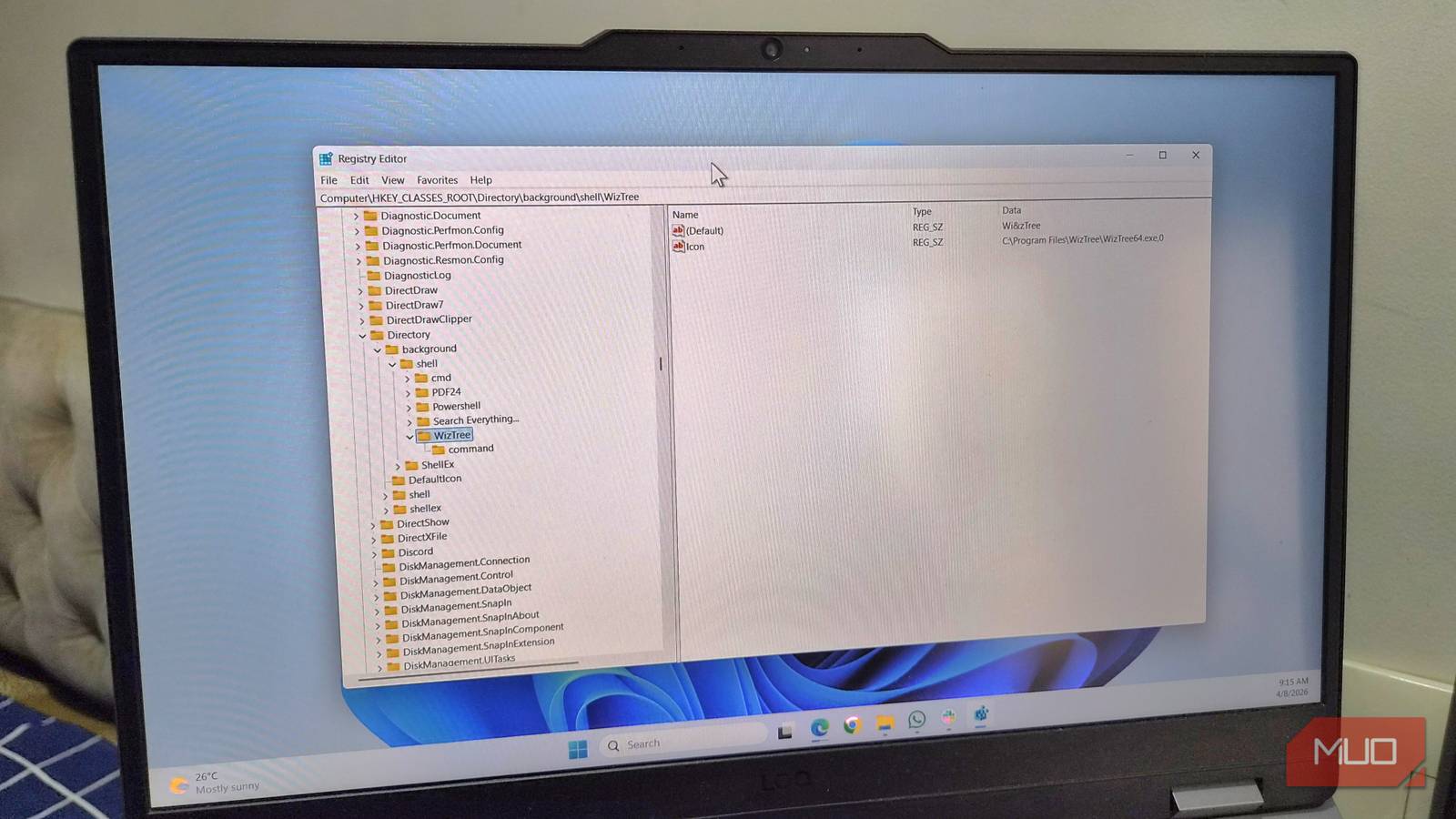
One of the most popular registry tweaks in Windows 11 is bringing back the classic context menu. And while that’s a great start, you don’t have to stop there. With a couple of registry tweaks, you can add your favorite apps and websites in the right-click menu. This way, you don’t need to head to the Start menu or use desktop shortcuts every time you want to open an app.
To do this, open the Registry Editor and navigate to the following key:
HKEY_CLASSES_ROOTDirectoryBackgroundshell
Right-click the shell key and select New > Key. You can name this key anything, but using the app name, like Audacity, will keep things simple. Now, double-click the Default entry in the right pane and enter the name Windows should display in the context menu. Next, right-click anywhere and choose New > String value. Name this string Icon, double-click it and enter the path of the app’s EXE file.
Now, create another key called Command under Audacity. Then, double-click the Default entry, and enter the same EXE file path you used earlier. Finally, close the Registry Editor, restart your PC, and your app should appear in the right-click menu.
Disable the lock screen
Boot straight to your desktop
The Windows lock screen surely looks nice. It shows beautiful images from Bing, a few helpful widgets, and even tips from Microsoft. It’s also necessary for anyone who uses their PCs in shared or public places. But if you only use your PC at home, the lock screen doesn’t add much value. It’s just one more step you need to complete before getting to the desktop.
In that case, you can simply disable the lock screen using the Registry Editor. For that, head to the following key:
HKEY_LOCAL_MACHINESOFTWAREPoliciesMicrosoftWindows
Right-click the Windows key, choose New > Key, and name it Personalization. Now, right-click the Personalization key and choose New > DWORD (32-bit) Value. Name it NoLockScreen, double-click it, and set its value to 1.
Turn off power throttling for better performance
Trade efficiency for speed

Like any responsible operating system, Windows does a lot of optimization to strike a balance between performance and energy consumption. One of the ways it does this is through power throttling. It’s a feature that tries to reduce CPU usage for better battery life. It works by cutting down background processes that Windows feels aren’t unnecessary.
But if performance is a priority, it’s best to disable this feature. To do that, go to the following registry key:
HKEY_LOCAL_MACHINESYSTEMCurrentControlSetControlPower
Now, create a new value called PowerThrottling, and set its value data to 1. That’s it. The feature is now turned off, and you should notice a difference in performance.

I changed one registry value and my Windows PC feels instantly faster
This registry change fixed the sluggishness I’d learned to tolerate.
Disable network throttling for faster internet
Give your bandwidth the freedom it deserves

Windows doesn’t just manage your CPU and power usage. It also keeps an eye on your network activity. It uses something called network throttling to make sure things like streaming and updates always run smoothly.
In a way, it limits how much network bandwidth certain tasks use. This usually isn’t a problem if you have a high-speed connection, but it can sometimes cause high ping in gaming or slower downloads.
If that is something that you don’t want, head to the following key:
HKEY_LOCAL_MACHINESOFTWAREMicrosoftWindows NTCurrentVersionMultimediaSystemProfile
Look for the NetworkThrottlingIndex DWORD. If you can’t find it, right-click anywhere in the right pane, and choose New > DWORD (32-bit) Value. Name it NetworkThrottlingIndex. Double-click the entry and change its value to ffffffff. Hit OK and restart your PC.
Stop automatic Windows updates
Update on your terms, not Microsoft’s

Windows updates are undeniably important. They bring security patches, bug fixes, and of course, new features. But the biggest problem is how Windows sometimes reboots at the worst time.
Sure, the built-in active hours feature does help with this, but it doesn’t eliminate the risk completely. If you’d rather install these updates at your own convenience, you can turn off automatic updates with Windows Registry.
HKEY_LOCAL_MACHINESOFTWAREPoliciesMicrosoftWindowsWindowsUpdateAU
Head to the above path, right-click the AU key, and choose New > DWORD (32-bit) Value. Name it NoAutoRebootWithLoggedOnUsers. Double-click it and set its value to 1. Click OK and close the Registry Editor.
The Windows Registry has a reputation problem. It’s often described as complex and risky, and to some extent, that’s true. But if you use it carefully, it can unlock so many doors and features. The above tweaks are just the tip of the iceberg. There are plenty more registry settings that can change the way you use your PC.
