
It’s extremely annoying and frustrating to deal with a slow PC, especially when it’s your everyday machine. When a PC runs slowly, most of us blame ageing hardware or Windows updates. Some even jump straight to expensive upgrades like getting a new SSD or buying more RAM to fix a slow PC.
But that might not even be the cause of your sluggish system.
Thankfully, Windows offers a built-in tool that can tell you exactly what’s slowing things down in real-time. The problem is that most either ignore it or don’t know how to read it properly. If your PC also feels slow, freezes randomly, or takes forever to respond, the culprit is sitting right there in one specific Task Manager tab.
The Task Manager tab you should be using
It’s all in the Processes Tab
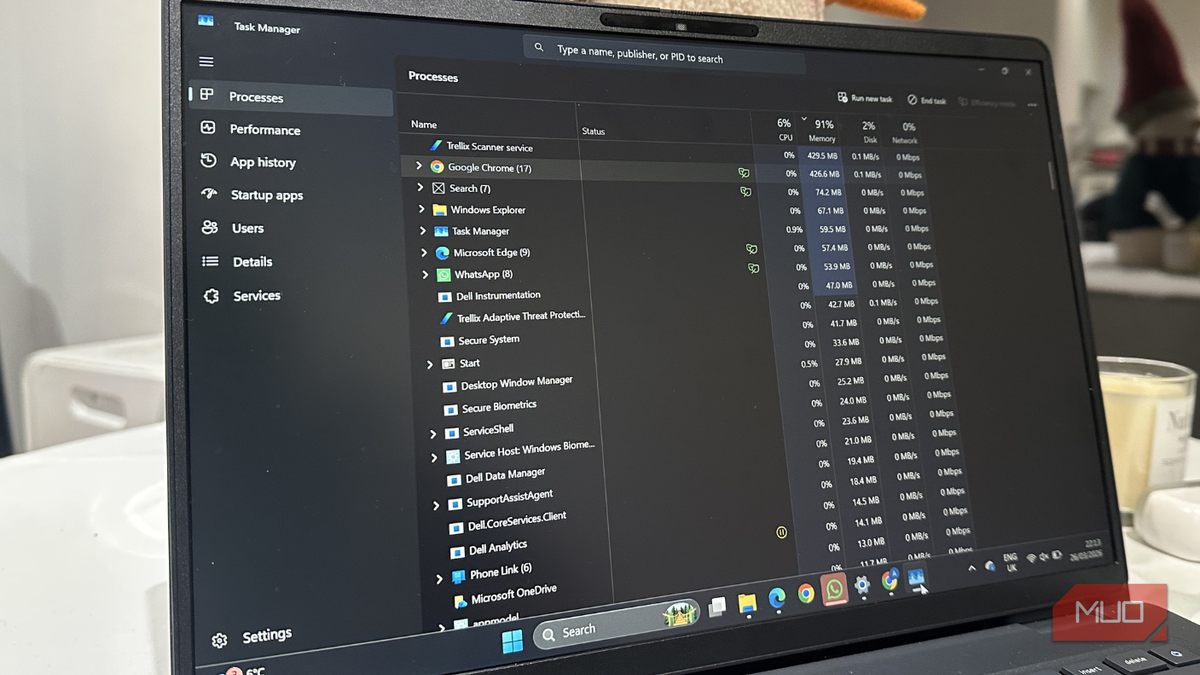
Most folks have used Task Manager at some point, mainly to force close unresponsive apps. It’s a built-in Windows utility that monitors system resources and provides detailed information about running processes. When you open Task Manager (Ctrl + Shift + Esc), you see several tabs, but the one that matters the most for diagnosing a slow PC is the Processes tab.
It will give you a real-time overview of what’s currently running on your machine, such as active applications and background processes. More importantly, the Processes tab shows how much system resources each process is currently using. You’ll see four key metrics: CPU, Memory (RAM), Disk, and Network. If your PC is slow, one or more of these metrics will be close to maxed out. The Processes tab helps you identify the resource hogs. You can click on any column header, like CPU, to sort the processes in descending order. This will show you which process is consuming the most resources and slowing down your system.
How to properly read the Processes tab
Interpret it like a Pro
If you’ve never visited the Processes tab before, it can look overwhelming. You might feel there’s too much information at once. But if you know what you have to look for, things get really simple. Here’s how you can read your Processes tab easily:
High usage spikes
The first thing you must look for is unusually high spikes at the top of the Processes tab. This will give you a quick snapshot of what’s stressing your PC. For example, if CPU is hovering near 100%, something is overloading the processor. If memory is close to full, your system is running out of RAM. When the disk is stuck at around 100%, it indicates a process with heavy read/write activity, while sudden network spikes mean an app is consuming too much bandwidth (well, network-dependent). Once you know which resource is under pressure, click on its column header to sort the processes by usage. This will instantly bring the most demanding apps to the top, making it easier for you to spot the culprit.
It’s worth knowing that high usage doesn’t always mean something is definitely wrong, and you have to end that task immediately. It could be an essential system process, and interrupting it might cause some serious issues. For instance, you could lose Windows update files or corrupt a backup. These processes could temporarily push CPU or disk usage to 100%. Once the process completes, this should return to normal.
Identify the problematic process
Sometimes, you might see a web browser with too many open tabs or a background process you didn’t even realise was running on your PC. The problematic process could also be a piece of software stuck in a loop, third-party antivirus software, or system-related tasks like updates, which are temporarily hogging resources. If you see a single app or process using far more CPU, memory, network, or disk than everyone else, it could be the bottleneck responsible for slowing down your PC.
Before taking any action, you must verify what the process actually is. You might see an unfamiliar process, but it could be essential for your hardware to work properly. To verify, you can right-click the process and learn more about it online. Sometimes, malicious software might be disguised as a genuine task, especially if it has a weird name and no clear publisher. For example, if the CPU usage is very high and you don’t recognize a process, your PC might be infected with malware.
Watch out for patterns
Besides constant high usage, you must also focus on patterns. In some cases, your PC might not be slowing down because a resource is sitting at 100%. Rather, it could be repeated spikes that come and go. For instance, CPU usage jumps from 30% to 90% every few seconds, or the disk hits 100% at intervals. These fluctuations are often caused by apps or processes that aren’t working properly
What to do once you find the problem
Take action

Once you’ve spotted the culprit app, there are various ways to deal with it.
- If you find something like a browser or a non-critical app, you can close and restart it. Right-click the process and choose End Task, but make sure you don’t kill any vital processes. Otherwise, it might crash the app, cause system instability, and you could even lose some data. If you’re unsure of what the process is, it’s better to check it online or allow it to complete.
- If it’s a known app that you use regularly, try reducing resource usage. You can close unused tabs, pause heavy tasks like downloading, or lower their settings (for games, video editors, or the like).
- If an app consistently causes slowdowns and isn’t essential, it’s better to uninstall it. You can look for their better or lighter alternatives. Also, if you see a rarely used app at the top, you must uninstall it. That’s because some apps are poorly optimized, which consume more resources.
In case you see Windows processes like updates or indexing, you must wait for them to finish. If you interrupt them, it might cause more problems on your PC.
Dig deeper to reveal hidden bottlenecks
Uncover what’s slowing down performance

In some cases, the Processes tab might not immediately reveal the issue. But you don’t have to worry. Task Manager has more tools to help you.
Use the Performance tab
The Performance tab can help you understand your system’s health over time. It offers real-time graphs showing CPU, memory, disk, and GPU usage. This can help you spot long-term trends and determine whether your system is consistently under strain. For instance, if you see constant high memory usage, your machine likely needs more RAM.
Check Startup apps
A slow PC isn’t only about what’s currently running, but what launches automatically also plays a big role. Startup apps are apps and processes that launch automatically when you turn on or log in to your system. It’s fine to have some essential apps open during the launch, but too many startup apps can slow down the boot time and overall performance. Go to the Startup apps tab, look for apps with high impact, and disable them. You must also disable any unnecessary apps.

6 ways to free up RAM in Windows when your PC starts slowing down
Freeing up vital memory on Windows only takes a moment, and your computer will feel much faster once you’re done.
Your PC needs smarter diagnosis, not expensive upgrades
Task Manager won’t fix your PC on its own, but it will tell you exactly where to look. Most slow-PC problems aren’t hardware failures — they’re processes misbehaving, apps that never fully close, or software you forgot was even installed. All of that is visible in real-time, for free, without downloading anything.
The next time your machine feels sluggish, open the Processes tab before you open your wallet. Sort by CPU, then memory, then disk. If something is sitting at the top of that list with no good reason to be there, you’ve probably just found your problem — and fixing it might take thirty seconds.
