
I used to think I had a handle on my data usage. Then, three days before my billing cycle reset, I’d get that dreaded notification: You’ve used 90% of your data — every month, without fail. The frustrating part wasn’t the overage so much as the lack of any idea where all those gigabytes actually went. Was it the Android sync settings in the background? The autoplay videos? My phone just… breathing? I needed answers, not just warnings.
I tried Android’s built-in data settings. It told me my total usage for the month, which was about as useful as a receipt with no itemization. What I actually needed was something that met me where I am every day — on my home screen — and told me the number I needed to know right now. That’s what Data Monitor does, and it does it without ads, tracking, or charging a single cent.
- OS
-
Android
- Developer
-
Bitroid
- Price model
-
Free (open-source)
Data Monitor tracks your mobile and Wi-Fi usage in real time, breaking it down by apps and time periods so you know exactly where your data goes.
Let’s set up Data Monitor
Your carrier already knows — now you will too
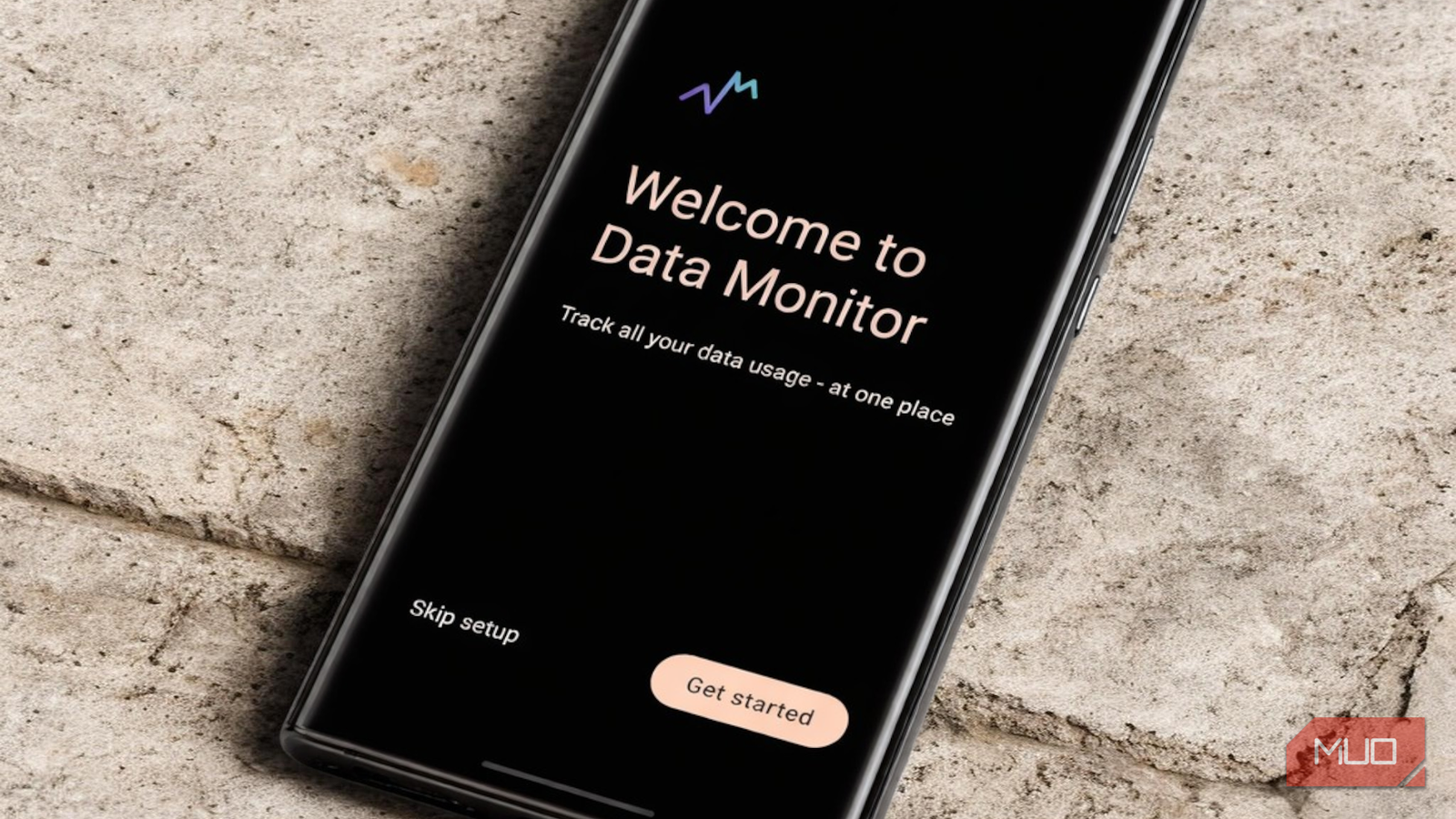
The first screen you see after installing Data Monitor is a simple welcome page with two options: Get started or Skip setup. Do not skip it. The setup flow contains one step that matters: turning off battery optimization for the app. Android’s power management will put background apps to sleep to preserve battery, so Data Monitor can be killed before it can accurately record your usage. Mind you, while disabling background activity for certain Android apps can save power, utilities that need to track real-time data require a persistent connection to provide accurate results.
Once you are through that, the app nudges you to add your data plan. Tap the “Add data plan” prompt on the home screen or head into the Setup tab. You will be asked to choose a reset counter: Daily, Monthly, or Custom. Most people will select Monthly, then enter their plan’s data limit. My own plan is 500GB monthly, but yours will depend on your carrier. The Custom option is there for anyone whose billing cycle resets on a day other than the 1st, and getting this right is what allows the app to calculate remaining data accurately. It is also especially helpful when your mobile data doesn’t roll over, and you want to use it before it expires.
With the plan saved, the home screen immediately becomes useful. At the top, two side-by-side cards show your mobile data and Wi-Fi usage for today, each broken down into sent and received. Scrolling down reveals a weekly bar chart that plots both connection types in different colors, so you can spot at a glance whether Tuesday was unusually heavy or whether yesterday was the chillest day of the week.
Then there is the widget. To add it, long-press an empty area of your home screen, then select Widgets from the menu that appears. Scroll down to Data Monitor and tap to expand it. You will see a single 2×2 widget preview labeled “Data usage.” When you tap Add, it drops onto your screen. What you get is a compact, dark-themed card showing your total mobile data, with the remaining allowance below in smaller text, and your Wi-Fi usage underneath. It refreshes automatically every minute by default; you can adjust this in the Setup tab if you want it to refresh less or more frequently.
Now see where your data is actually going
Spoiler: it’s probably Instagram
After a day of normal use, tap into the App Usage tab and prepare to be surprised. The list ranks every app on your phone by how much data it has consumed, with a small progress bar under each name giving you an instant visual sense of proportion. On my phone, Instagram used 289MB of mobile data in a single day, while Mobile Hotspot consumed 242MB, and YouTube Music added another 92MB. Switching the filter to Wi-Fi told a different story: Instagram jumped to over 837MB, nearly the entire morning’s usage on its own.
That filter system is flexible. If you tap the orange Filter button, a panel slides up letting you choose a session (Today, Yesterday, This Month, Last Month, This Year, All Time, or a custom date range) and a connection type (Mobile data or Wi-Fi). There is also an Exclude Apps option in Settings if you want to remove specific apps, like a trusted VPN or system service, from skewing your totals.
If you want a guardrail rather than just visibility, the Setup tab includes a Data Usage Alert toggle that triggers a notification the moment you reach a set threshold. The default trigger sits at 85% of your plan, which I found to be a sensible warning point, though you can tap into the Data Warning Trigger Level to adjust it to whatever feels right for your habits.
While you’re in there, a few other toggles are worth a look. Live network speed adds real-time upload and download rates to your notification shade, which is good for when you’re wondering why a page is loading slowly. The widget refresh interval is set to 1 minute by default, a nice balance between accuracy and battery drain. And if you’ve entered your data plan details, make sure “Show info about remaining data” is switched on. It adds that “X GB left” line beneath your usage, which makes the numbers feel a lot more grounded.
The Diagnostics tab rounds the app out with a built-in speed test. It checks both download and upload speeds using a default server, but you can swap between a few preset options or even plug in a custom server if you’re feeling particular.
Go ahead, unlock your phone to check
Data awareness is one of those small habits that compound over time. You start by glancing at the widget, then adjust, and after one month realize you actually made it to the reset date with data to spare. That shift does not happen because you became more disciplined. It happens because you finally had the right information at the right time.
