
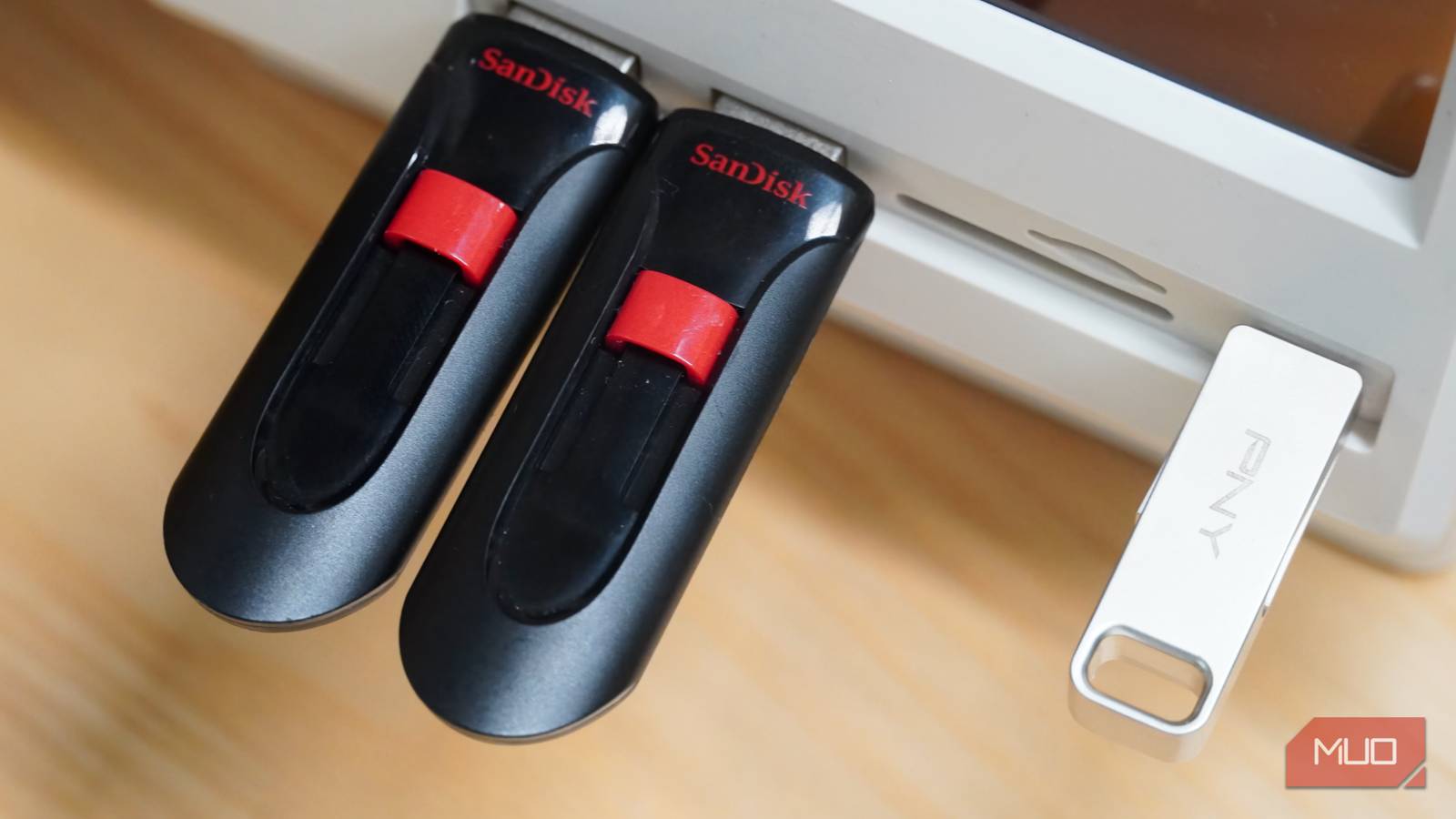
You will be in good company if you’ve ever seen a USB 3.0 or USB 3.1 on a USB thumb drive’s label and assumed it was fast. I gained clarity on USB speed when I transferred files to two USB drives with the same label, and the gap in completion times was very wide.
I thought the version was a speed rating, but this experience taught me otherwise. Read and write speeds, measured in MB/s, are the real performance indicators; understanding how to spot them will help you avoid buying a slow flash drive.
USB labels create the illusion of speed
Why two “USB 3.0” drives can perform nothing alike
After my experience, I needed to know why two USB 3.0 flash drives don’t have the same speed. The first thing I figured out was that this label indicates the supported maximum speed for a connection. The best way to understand it is to see 3.0 as a highway where all sorts of cars may drive through — some fast and others slow. A slower drive can still connect via a faster USB port, but its performance will be limited by the drive.
The naming confusion goes deeper. USB 3.0, USB 3.1 Gen 1, and USB 3.2 Gen 1 are three different labels for the exact same standard.
A cheap drive with the 3.0 label can have a read speed rating of ~120 MB/s and a write speed rating of ~10 MB/s, while a performance drive with the same 3.0 label can have a read speed rating of ~300 MB/s and a write speed rating of ~150 MB/s. The part you actually feel is the speed, and the label doesn’t have much to do with it.
Even though USB 3.0 (USB 3.2 Gen 1) supports up to ~5 Gbps (~400-500 MB/s in practice).
The number that actually tells you how fast a USB drive is
How to read MB/s ratings without falling for marketing tricks

Read and write speeds are the factors that significantly determine USB drive performance. This is a bit similar to the U speed class indicator on MicroSD cards. The speed at which data is transferred from the drive is determined by the read speed, and the write speed determines how fast you can transfer data to it.
I classify them into 3 tiers:
Drive Tier | Read speed (MB/s) | Write Speed (MB/s) |
|---|---|---|
Budget | 20-30 | 5-15 |
Mid-range | 80-150 | 30-60 |
High-end | 300-420 | 100-240 |
For daily use, write speeds matter most. However, manufacturers may highlight read speed and intentionally leave out write speed because it looks better on paper. So it’s best to assume the write speed is low if it’s not easily available.

I’ve ignored these symbols on my USB ports for so long and now I regret it
Those tiny USB symbols reveal more than you think.
How to find the real speed before you buy
Where to look and why brands don’t make it obvious
USB thumb drive manufacturers generally display the write speed when the drive is fast, so this is usually straightforward to figure out.
However, it starts becoming trickier with slower drives. In place of write and read speed, you see the USB version clearly displayed, something like “Version 3.0.” This is a marketing trick since they understand most people assume the version represents speed. To find its exact write speed, look it up on the manufacturer’s specifications page.
Still, independent write speed benchmarks like SSD tester are the most reliable option because they show actual speed under real-world conditions rather than the controlled environments that manufacturers may test in. You may find these using a Google search with the name of the USB thumb drive and “write speed benchmark”.
Typically, fast drives will have write and read speeds, or just the write speed displayed. The moment it becomes hard to find any of these, you can assume you are dealing with a slow drive. The same is true when what you easily see is the USB version.
What actually determines those speeds
The hardware factor you didn’t know of

You now know the numbers that determine speed. However, the flash memory inside the drive is actually why speed varies and why some transfers start fast and end up crawling mid-transfer.
If a drive uses TLC (triple-level cell) NAND, the cheaper option, it will struggle and become slow under sustained writes. The second option for flash memory is SLC (single-level cell) caching, which many manufacturers use to disguise the problems of TLC. This buffer makes the initial writes extremely fast, but as soon as the buffer fills, it reverts to writing native TLC. In such cases, write speed may go from up to 80 MB/s to as low as 10 or 20 MB/s.
The difference in flash memory means that even if two drives have identical advertised speeds, the behavior can be very different for large file transfers. A few types of drives avoid this write bottleneck, but in practice, they are essentially miniature SSDs rather than traditional USBs. This class has better controllers, higher-grade NAND, and the caches are larger or DRAM-backed. These kinds of drives typically show up on drive benchmarks as a flat write-speed graph.
A simple way to avoid both slow drives and unnecessary upgrades
Here is one important bit: not everyone needs the fastest USB. You need one that’s perfect for your workflow. This guide will help you get a USB drive that works best for your workflow:
Use case | What counts most | Recommended write speed |
|---|---|---|
Documents / light use | Minimal writes | 10-30 MB/s |
Media transfers | Sustained writes | 50-150 MB/s |
Large backups / files | Consistency | 150-300 MB/s |
The fuller a drive gets, the smaller effective caches become due to less free space for garbage collection. So, a drive that feels fast when new can slow down noticeably once it’s nearly full.
If you understand all this, it becomes easy to pick a USB drive that doesn’t leave you frustrated mid-work. You may also opt for a USB data-transfer cable if you need an alternative for quick transfers.
