
Android phones have a tendency to get progressively slower as they age. There are things you can do with an old Android phone, but using it as a daily driver might not be possible on account of the slowdown.
Now, of course, there are tricks to speed up old Android, including disabling animation scales—a setting buried in the hidden Developer Options menu. But that same menu holds another, much more impactful setting that can actually make your old Android phone feel faster, not just play a trick on your mind.
Animations feel smooth—but they’re fooling you
Why slowing things down can look like better performance
Most advice on the internet related to speeding up old phones revolves around heading into the Developer Options and turning the animation scales off. It’s not completely useless, as reducing animation scales does reduce the visual delay between a tap and the system’s response. But your phone’s sluggishness isn’t caused by animations being too slow. Your old Android might stop lagging after you toggle this setting, but it only looks that way.
On older devices, especially ones with 4GB of RAM or less, slowdowns are generally caused because the system is running out of usable RAM and is struggling to keep up. Making transitions look faster does nothing to solve that. What actually causes your old phones to slow down is happening behind the scenes, completely invisible to you.
Your RAM is the real bottleneck
What’s actually slowing your phone behind the scenes
Android is designed to keep apps ready in the background so they launch faster when you switch back. It’s a great way to make apps open up instantly, but modern apps, especially apps that sync data, can keep running in the background even when you’re not using them. They keep consuming system memory and triggering periodic wake-ups.
Add OEM bloatware that ships on most Android phones, along with Android settings that are slowing your phone down, and you have a situation where a significant portion of your phone’s memory is already gone before you even open an app you actually need. This is what’s actually causing your phone to slow down—it just doesn’t have enough resources to keep everything running smoothly.
Android has a built-in system for dealing with this problem called the Low Memory Killer (LMK). When available RAM is low, the OS starts closing apps in order of priority, with the least recently used apps going first. On older devices, you’ll keep hitting this threshold constantly as apps continue to get more demanding. Every time you open a new app, the system has to scramble to terminate another, write that state to storage, and reload whatever you just launched. This process takes time, and that’s where the lag comes from.
This one setting changes everything
Limiting background processes for instant responsiveness
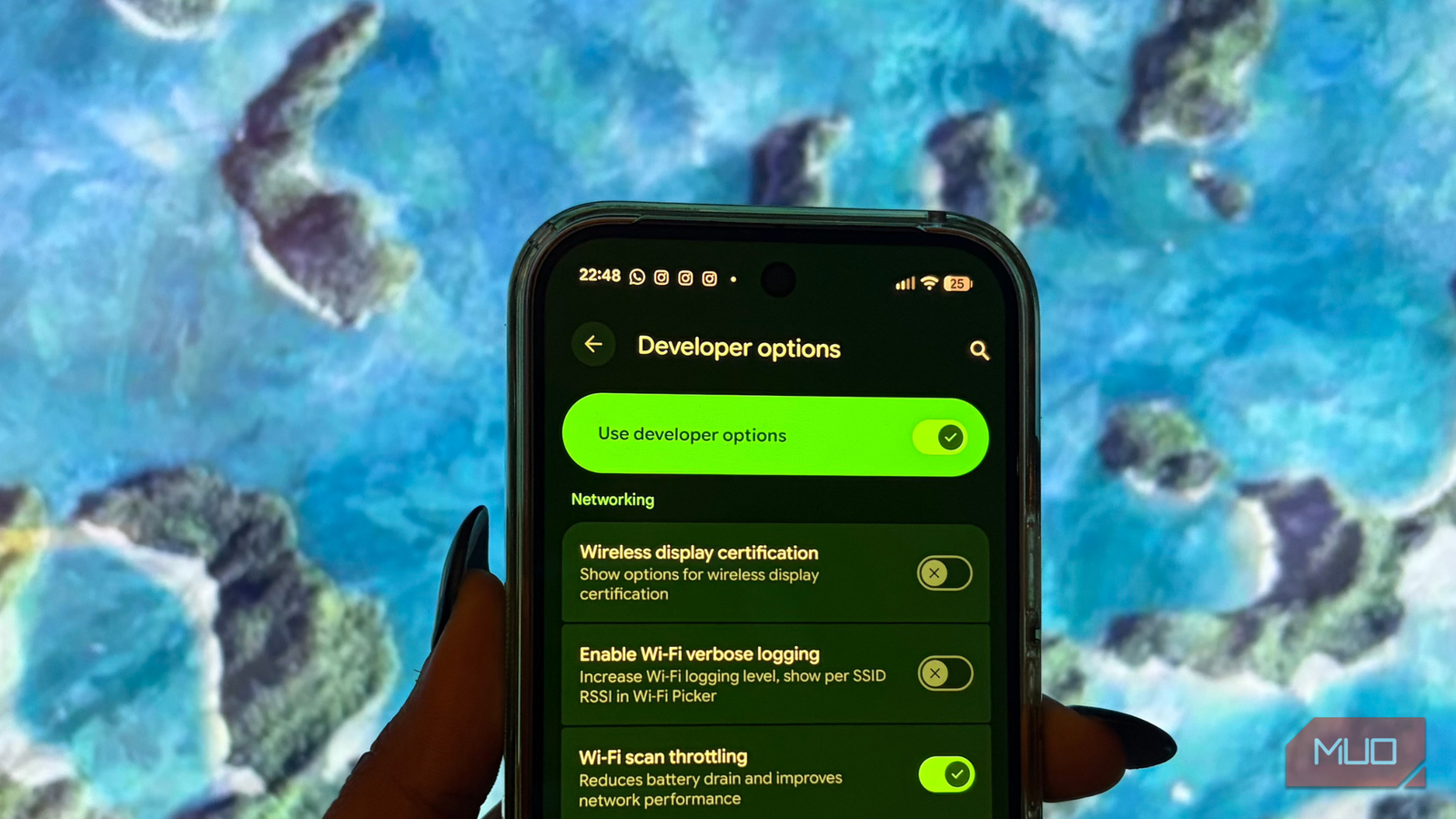
This is where the Background Process Limit setting comes in. Hidden within your Developer Options, it gives you a hard cap on how many processes Android is allowed to keep running in the background at once. Instead of Android passively waiting for memory pressure to build up before it starts terminating apps, you’re telling it to only keep a specific number active at any given time.
Changing the setting is relatively easy. Just follow these steps:
- Enable Developer Mode by heading to your phone settings, then the About Phone section, and tapping the build number seven times.
- Head to the Developer Mode settings and tap the Background process limit option.
- Tap the appropriate setting according to your phone’s hardware.
Your options range from letting the system decide down to 4, 3, 2, 1, and on some phones, even zero background processes. The lower you set this setting, the bigger the impact you’ll see. On phones with 4 GB RAM or lower, setting this to At most 2 processes is the sweet spot, but you can experiment with different options to see what suits you best.
The result is that the RAM your foreground app needs—the one you’re actually using—is consistently available. This prevents that annoying stuttering mid-scroll because an app in the background randomly chose to wake up and start pulling data.
There’s a catch you should know
What you lose when you force apps to stay closed

Keep in mind that you’re not magically performing extra performance out of your hardware. You’re simply changing how Android treats background apps on an OS level. As you can probably guess, this comes with some trade-offs.
When you switch back to an app that got kicked from the background, it’s going to reload from scratch instead of resuming where you left off. This also means a longer startup time.
On a newer phone with fast memory or plenty of storage bandwidth, that’s fine. On older hardware, cold-launching an app can take a while. What you’re really doing is trading one type of slowness for another—except the version you’re trading to is far less annoying, as your phone won’t be stuttering every 30 seconds. It’ll only take longer to launch apps.
Notification still works as expected, so you’re good there. WhatsApp messages, email, and calendar reminders, social media alerts, all will still come through. These events are handled by the system separately from cached background processes.
Your old phone isn’t done yet
A simple tweak that makes it feel usable again
If you’re trying to bring an old Android phone back to life so you can use it in an emergency or hand it off to someone in need, making sure it runs properly should be the first step. A phone that stutters every time you scroll or swipe is nothing but an excellent option to force yourself into a digital detox.

I disabled background activity for these 5 Android apps and now my battery lasts much longer
Meet the real culprits
The animation tip isn’t wrong, but it’s just cosmetic. Putting a leash on your Android phone’s background processes changes how Android deals with memory, and on an older phone with less memory, that can be the difference between an old phone being usable again versus it ending up in a landfill.
