
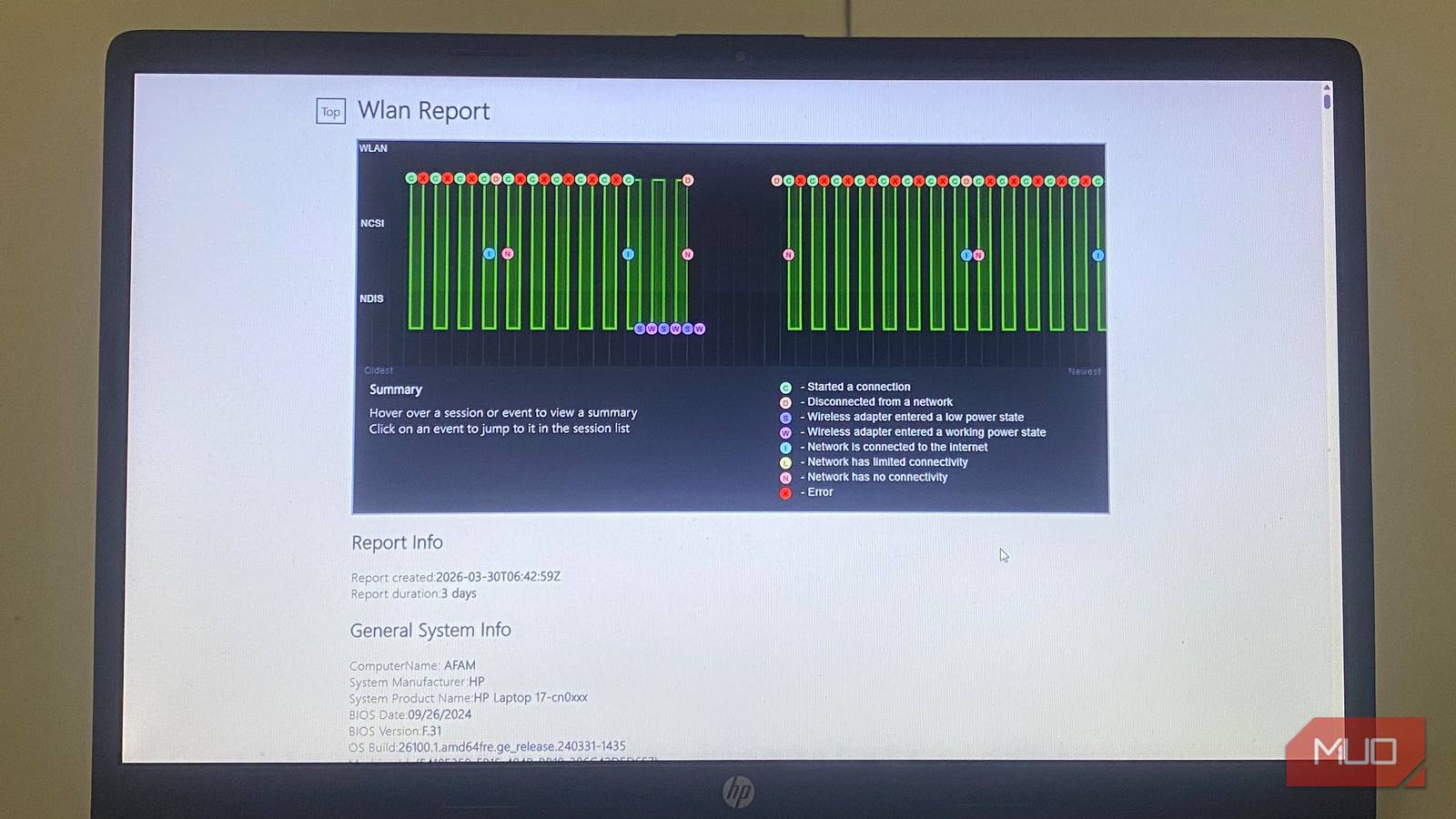
When I have connection or network problems, I often default to the report that my router offers. Unfortunately, this report isn’t always comprehensive enough to show why my Windows PC may be dropping connections or failing to reconnect.
Recently, I found out that by running the netsh wlan show wlanreportWindows command, I can generate a detailed HTML report of recent Wi‑Fi activity. The report covers the last three days by default and includes session history, disconnect reasons, adapter details, and other network information that router logs usually do not show. This is the WLAN AutoConfig layer, and most people never know it exists. It includes connection attempts, authentication, driver events, and power states, and is far more elaborate than the router reports I relied on.
View every connection attempt
Even failed handshakes and partial connections are recorded in detail
When I ran the command netsh wlan show wlanreport the results were more revealing than I expected. The report covers three days of wireless activity by default, and as I pored through it, I saw details that my router typically would not surface. The report goes beyond listing successful connections to logging every attempt, even those that failed before establishing a connection.
After running the command, Windows stores the comprehensive report in this path: C:ProgramDataMicrosoftWindowsWlanReportwlan-report-latest.html. It opens as an HTML page in your browser.
For the first time, I saw a complete connection sequence: association succeeded, security negotiation completed, and the system confirmed the connection.
From the report, I could see when connections don’t stay stable from start to finish. This matters more than the simple “connected/not connected” data routers provide.
This is important information because without it, I would either assume my Wi-Fi was or wasn’t working. But now I have more context showing it’s connecting, but not just holding.
Understand why connections fail
The disconnect reason is often the real diagnosis
The Disconnection Reasons section of my WLAN report was invaluable in making the entire report precise. Within the three-day scope, the report logged 57 failed sessions and 14 warnings. Failures were sessions where a connection was never fully established; warnings covered notable system events like capability changes and interface token applications.
Separately, the Disconnection Reasons breakdown showed what caused those failures:
- 52 “Driver disconnected while associating” errors
- 12 “Network disconnected by the driver” errors
- 4 “No connectable access point visible” errors
- 2 “Policy disabled auto connect” errors
- 1 “Temporary disconnect request” error
There were multiple “Driver disconnected while associating” errors, implying that my Wi-Fi adapter’s driver was failing during the handshake. This error helped me deduce that the issue wasn’t a wrong password or my router rejecting my Wi-Fi adapter.
I found this insight significant in determining the troubleshooting steps I needed to take; I could focus on my adapter and its driver rather than the router.
Some errors pointed to moments when the network wasn’t available, others pointed to times when Windows prevented reconnection, and one showed a system-triggered reset to recover connectivity.
This was a level of insight that I never got from my router. My router reports never carried enough information to point me in the direction of a driver that was failing mid-association dozens of times. I had enough context to diagnose rather than guess network issues.
The session timeline reveals patterns you can’t see in real time
Instability shows up as repetition, timing, and duration

Wi-Fi issues are patterns, and I could see the bigger picture by looking through the session timeline. I had a network with multiple successful connections, so it was evident that the network was reachable. However, connections lasted about 8 to 20 seconds before dropping, and the system kept trying to reconnect. The data showed I was having an instability issue rather than a connection problem.
There was a different pattern on another network. It had a six-hour session and several accompanying short sessions. This was a significant contrast, pointing to stability and intermittent disruptions.
I could also see several events logged as “Connect to last good network.” These show Windows reconnection attempts that do not require user input, an event that is not always clearly evident. These were the main patterns I observed:
Pattern observed | What it suggests |
|---|---|
Many sessions under 1 minute | Unstable connection |
Repeated reconnect attempts within seconds | Adapter struggling to re-establish connection |
One long session among many short ones | Intermittent issue, not constant failure |
“Connect to last good network” events | Windows attempting automatic recovery |
It’s possible to catch trends that you typically miss in real time by combining session duration, repetition, and timing. While your router may be limited to isolated events, this Windows report provides the raw material to spot patterns yourself.
System-level behavior your router will never see
The depth of the Wi-Fi network reports was impressive. It included real visibility into what my system was doing in the background. I could observe power state changes, adapter activity, and system-level transitions. I was seeing specific elements that the Windows operating system controls, like when my network adapter entered low-power states, when it woke up, and when it shifted between operational modes.
All of these show that Wi-Fi stability goes beyond the network and depends on how your computer manages the adapter. Your PC can interrupt the network if it’s aggressively managing power, switching states, or briefly suspending the adapter.

I changed one 2.4GHz Wi-Fi setting and my connection got much more stable
A simple change in my Wi-Fi setting fixed the issue, and the connection has been consistent ever since.
