
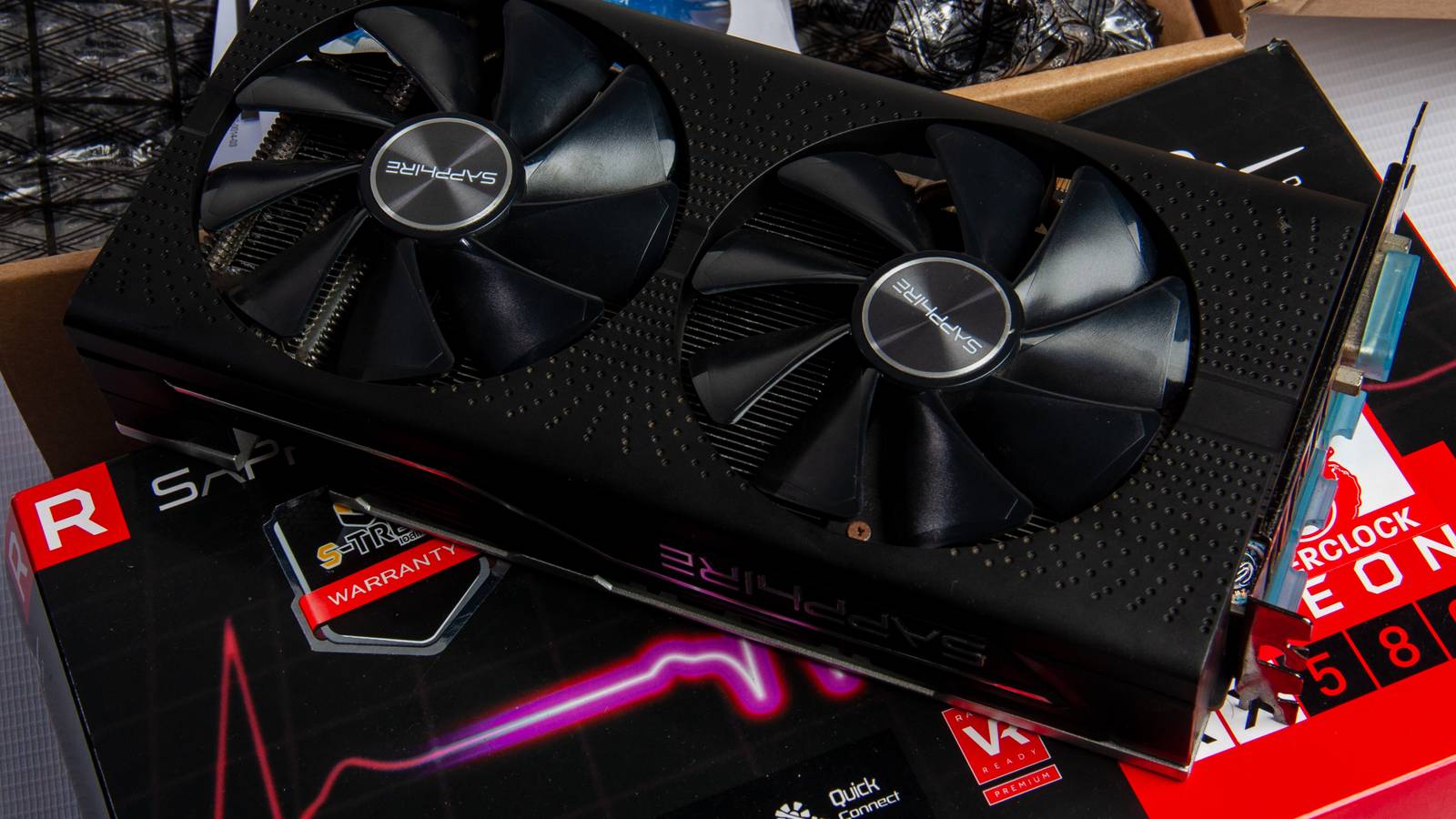
Summers are right around the corner, and as a desktop owner myself, I am quite worried that my PC may run hot, especially the GPU, since most of my tasks are either gaming or video editing. Under load, high temperatures will impact performance and wear out components fast, and during times when PC components are at sky-high prices, you wouldn’t want to risk one of your most expensive buys.
In many cases, a fix for an overheating GPU is a thermal paste replacement, but that might seem a bit daunting to many, as it is an intricate task that involves taking it apart. Fortunately for you, there are other ways to cool down your GPU, and here are some hacks I run to keep temperatures under control that definitely don’t involve cracking it open and voiding your warranty.
Fine-tune your GPU’s air cooling with a custom fan curve
A little tweak goes a long way

Your GPU fans are pre-programmed to run at specific RPMs for different temperatures. Even under load, they rarely run at full speed. This is done to ensure maximum life for the fans as well as to keep it running quietly. The good news is that these fan speeds are customizable, and you can easily make your GPU a few degrees cooler by adjusting the right curve.
I never recommend bumping up the fan speed to 100%, but these numbers can certainly be bumped up to somewhere in the 80% range at a high temperature, around 80 °C. What I recommend is to gradually increase by a 10% increment for every 10 °C increase in temperature. To do so, you can either use the built-in Fan Tuning setting in Radeon Software for AMD GPUs or, for Nvidia GPUs, use MSI Afterburner.
Cool your room
Environmental bottleneck

The room where your PC is located matters more than you think. If your room is anywhere with poor ventilation or where the sun directly hits it, then your system, specifically your GPU, is bound to run hot. Now, this might not be something you can fix completely, but what you can do is improve the airflow in your room, which will then directly impact your GPU temperatures too.
Poor ventilation would mean that the hot air coming from your PC is just flowing back in, which would make your GPU run hotter and also your room. My advice would be to open up your window/door to let the hot air out and let cool air come in, or if the airflow is still lacking, buying a good room fan or cooler is also a worthwhile investment.
Clean your system thoroughly
Don’t let your GPU choke on dust

Ignoring cleaning is slowly wearing your PC out and is something that will eventually come back to bite you. The dust buildup can act as a heat insulator or block your fans from letting air in or out. Specifically, GPUs easily collect dust due to their bigger heatsink design, fans, and the fact that they have a larger surface area and are the most exposed component in a PC. If ignored, dust specks and lint can easily get tangled inside your GPU fans and heatsink, trapping heat. Running hot, fans will also have to work harder, and overall, this puts strain on the entire GPU.
To clean, use compressed air to blow out the dust, and remember to hold down the fans because if they spin too hard, it can damage the bearings or, in rare cases, shorten the GPU itself. For a cleaner look, dip Q-tips in isopropyl alcohol to get a spotless look.
Improve your PC’s airflow
Cooling fans aren’t just for show

Most desktop PC cases may look absurd and over-designed, but it’s not all for show; they’re actually built for optimal thermal management. Airflow matters more than you’d think, since there are several components in a PC drawing hundreds of watts. Even if your GPU comes with a triple-fan configuration, if you don’t have a case fan for cool air intake and for exhausting warm air out, you’re trapping heat inside your PC.
No matter how your case is built, the optimal method is to line intake fans at the front of your case to bring in cold air and exhaust fans at the back to blow out the warm air from your GPU and the rest of the components. Other tips I recommend are cleaning your entire PC, keeping cables at the back, and placing the case in a place with decent, if not ample, space to allow it to breathe.
Limit your FPS to reduce power draw and heat
Your system doesn’t have to be working at 100% all the time
Your PC is mostly giving its all while running video games, whether hardware-intensive or not. If it’s easy on the hardware, you’ll get more frame rates than you’d even want most of the time. Limiting FPS benefits a lot by preventing your system, especially your GPU, from drawing too much power and, as a result, lowering its temperature. For instance, if your game is running at 140FPS, I’d recommend dialing it down to 100FPS; the difference isn’t vast, and you’d still get good performance with the added benefit of easing your system.
To limit FPS, there are in-game options, or you can use Radeon Chill from the Radeon Software for AMD GPU owners. For Nvidia GPU owners, open the Nvidia Control Panel and under 3D settings, you’ll find an option to set the max frame rate to any value you’d want.
Underclock your GPU
Preserve your hardware

While most guides on the internet focus on overclocking your hardware, I’d recommend underclocking your GPU for once to preserve the hardware. By running your GPU at a lower speed, you’re limiting power usage and, as a result, dropping temperatures. While underclocking may impact performance minimally, it can sometimes work in your favor. Lower clock speeds ensure your GPU keeps temperatures under control, resulting in more consistent peak performance by reducing the chances of thermal throttling.
To underclock your GPU, install MSI Afterburner (for both AMD and Nvidia GPU owners), then dial back the core clock. I suggest reducing the clock speed in increments of 5% up to 15% of your total clock speed to find the optimal range where you don’t have to sacrifice power for performance. Do check the temperatures before and after you make changes. If the change isn’t that noticeable, you can also dial down the power limit by 5-10% to get a better result, as the power limit and underclock work in conjunction.
Aggressive underclocking can lead to GPU crashes or instability, which is why I recommend not reducing the total clock speed by more than 15%.

3 Ways to Check If Your CPU or GPU Is Overclocked
If your hardware is overclocked, you’ll need better cooling or you could wreck your system.
Remove your PC’s case glass for better cooling
Extreme situations require extreme measures

Since the region I live in gets blisteringly hot, I have to take extreme measures for my GPU’s wellbeing. Now, it’s not to say that my PC doesn’t have a good airflow; I just want the most optimal performance, even if it means taking off the glass panel from my PC to let more air in. The difference is vast, and I personally can notice a difference in my GPU running up to 5°C cooler, which is a lot.
Now, it’s important to note that this is more of a temporary fix and can even sometimes interfere with the natural cooling path of your case’s airflow. I highly recommend it as an extreme measure, and this is more of a trial-and-error scenario where you’ll have to find out if it works for you or not.
Opening up your side panel will make your PC susceptible to dust buildup and will expose your components, so be very mindful of that.
One step at a time
This list has every fix that has worked for me over the years, with different configurations, living in different environments, etc. I highly recommend combining a few of these steps to get an even better result. That said, limiting power in any way, whether it’s underclocking or capping FPS, works the best, as it would not let the GPU run on its peak power, and combined with good airflow, you’ll have a noticeable difference in temperatures. Still, these are temporary fixes, and over time, if high temperatures persist, a thermal paste replacement would become necessary.
