
Most people treat their internet connection like a kitchen appliance. You plug it in, expect it to work, and never really think about what’s going on under the hood. Meanwhile, buried inside Windows’ Device Manager is a whole set of network adapter settings running in the background, often with names that sound like they belong in a server room somewhere. In reality, they’re not nearly as out of reach as they seem.
If you’re running Windows 10 or 11 on a reasonably modern machine, you can actually dig into these settings and tweak them yourself. And with a bit of care, those tweaks can shave off latency, improve overall throughput, and even stop your CPU from unnecessarily butting heads with your network card. The real trick is knowing where to find them and understanding what they’ve been doing behind the scenes this whole time.
Your network card has been holding out on you
Buried settings with authority
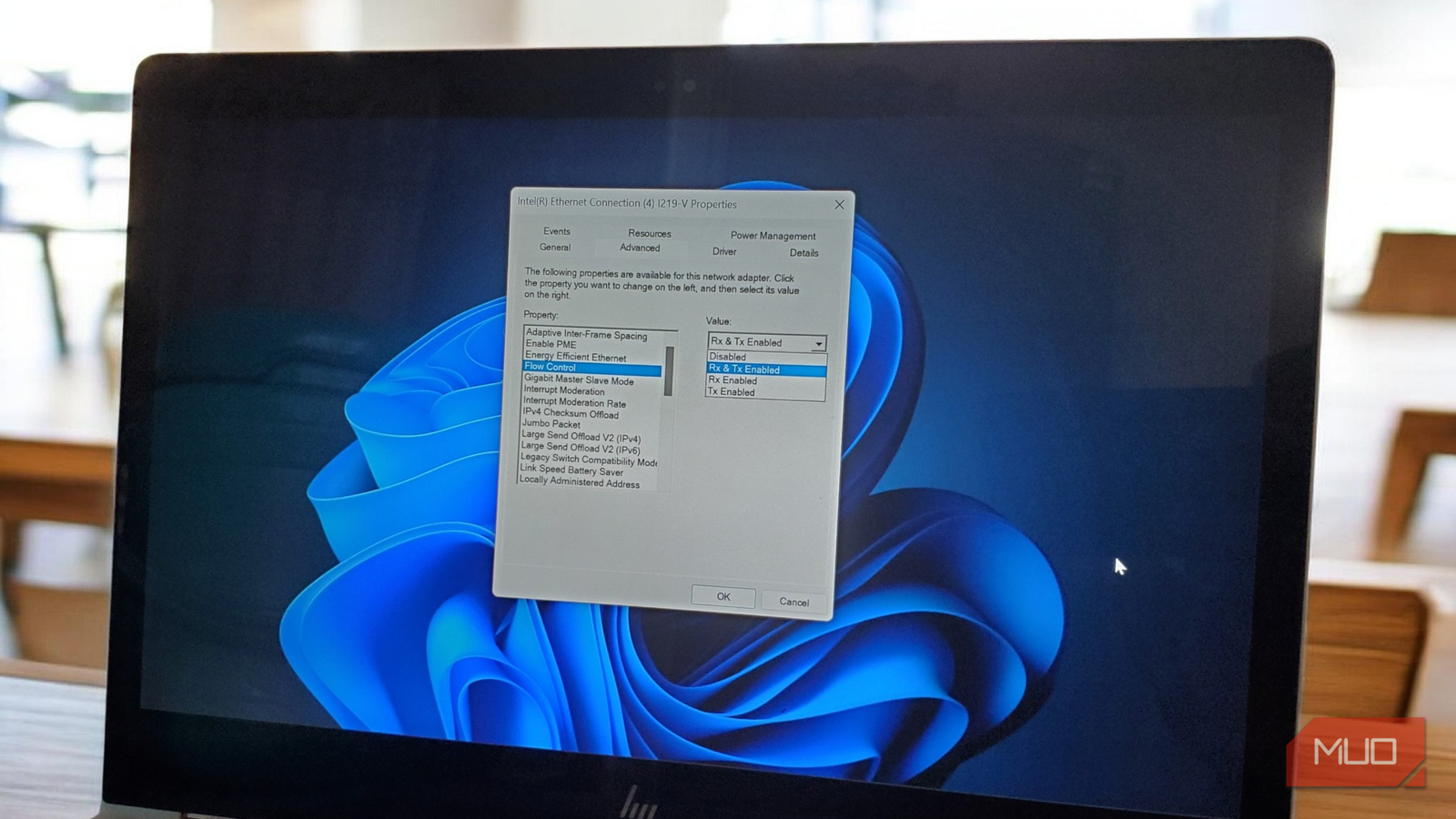
To get to these settings, right-click the Start button or press Win + X, select Device Manager, expand the Network adapters section, then right-click your Ethernet or Wi-Fi adapter and open Properties. From there, you could rename your network adapter, but for now, click the Advanced tab and prepare to be slightly overwhelmed in the best way.
What you see there is a list of hardware-level properties that most Windows users will never lay eyes on, simply because nothing in the standard Settings app points you here. The list varies by adapter brand and driver version, so an Intel NIC might show forty-plus entries while a budget adapter could show ten. That variability is part of why this panel feels so foreign. There is no universal Windows documentation that ships with it, a tooltip explaining the trade-offs, or a guided wizard. You are essentially looking at the raw configuration surface of your network hardware.
Before touching anything, take a screenshot of the current state or write down the defaults. This is not because the settings are dangerous, but because you will want a baseline to return to if your connection behaves strangely after a change. Changing one setting at a time and testing between adjustments is also good practice, much like you would during general network troubleshooting, since some of these properties interact in ways that are not always obvious.
Not every setting wants the same thing from you
Performance tweaks rarely agree with each other
The Advanced tab does not have a single “make everything better” toggle. Broadly, these settings fall into three camps: performance, stability, and power management. What you should tweak depends entirely on what you’re trying to improve, not some one-size-fits-all preset.
If you’re chasing lower latency for gaming, two settings are worth your attention: Interrupt Moderation and Flow Control. Interrupt Moderation controls how often your network adapter taps your CPU on the shoulder to say, “Hey, there’s data here.” By default, it groups packets before sending that signal, which is efficient but introduces tiny delays. Turning it off means each packet gets processed the moment it arrives, which is exactly what you want for real-time stuff like gaming or voice calls. The catch is that on older or lower-end CPUs, this can nudge CPU usage upward, so it’s worth keeping an eye on performance in more demanding games.

Windows was throttling my internet until I found these 5 settings
Your internet might already be fast, Windows just isn’t letting it feel that way.
Flow Control is a bit more subtle. When enabled, your adapter can instruct the sending device to pause if things get crowded. That’s helpful for preventing overloads, but it also means intentional pauses in the data stream. For gaming, where you want data moving without hesitation, disabling it removes those built-in slowdowns. The trade-off is a slightly higher chance of dropped packets if your network gets saturated, though most home setups never get close to that point. While you’re here, it’s also worth toggling Large Send Offload (LSO) off. It’s designed to reduce CPU work, but in practice, it can introduce small bursts or hiccups in game traffic.
While you are in this section, take a quick look at Speed and Duplex. It usually sits on Auto Negotiation, and for most people, that’s perfectly fine. But every now and then, your adapter and router don’t quite agree, and Windows settles for a slower connection, like 100Mbps instead of 1Gbps. If you need to fix your Ethernet speed being capped at 100 Mbps, manually setting it to 1.0Gbps Full Duplex can straighten things out. However, keep in mind that if your cable is damaged or you are using the wrong Ethernet cable for your target speed (such as an older Cat5 instead of Cat5e/6), forcing this setting may cause the connection to drop entirely rather than just run slowly.
If your goal leans more toward stable, high-speed transfers, the settings to focus on are Receive Buffers, Transmit Buffers, and Receive Side Scaling. Some adapters ship with conservative buffer sizes to save memory, but smaller buffers mean packets get dropped when traffic spikes. Increasing them gives your system more breathing room. Think of it as expanding a waiting room. The bigger it is, the fewer packets are dropped before the CPU can handle them. Setting both Receive and Transmit Buffers to their maximum values, often 1024 or 2048, is usually a safe move for heavy downloads or local network transfers.
To round that out, make sure Receive Side Scaling (RSS) is enabled. Without it, all that traffic can bottleneck on a single CPU core. With RSS on, Windows spreads the workload across multiple cores, which keeps transfers smoother and prevents one core from doing all the heavy lifting.
The power settings are working against you
Stability sometimes means turning things off
The third category is the one that tends to explain those “random” disconnects that never seem to have a clear cause. By default, Windows treats your network adapter as something it can put to sleep to save power. That’s a fair compromise on a laptop. On a desktop, it’s mostly unnecessary. And on any machine where you care about connection stability, it can be downright irritating.
Under the Advanced tab, look for Energy Efficient Ethernet, sometimes listed as Green Ethernet. This feature can cause the adapter to sleep during micro-periods of inactivity, leading to lag spikes or dropped connections. Disabling it is recommended to keep the adapter fully awake.

What to Do if the Ethernet Keeps Disconnecting on Windows 10 & 11
Ethernet is usually more stable than a Wi-Fi connection, but that doesn’t mean it never fails.
Then, without closing the Properties window, switch over to the Power Management tab and uncheck the option labeled “Allow the computer to turn off this device to save power.” This tells Windows, in plain terms, to leave the network adapter alone regardless of the active power profile. If the tab is missing, you can get the same result by running the Disable-NetAdapterPowerManagement command in PowerShell as an administrator.
If you’re on Wi-Fi, there are a couple of extra settings worth paying attention to. Roaming Aggressiveness is one of them, and it can be disruptive. At Medium or High, your system is constantly scanning for a “better” signal and may drop your current connection in pursuit of a marginal improvement. If you’re not moving around, setting it to Lowest keeps your connection stable, which is especially helpful if you’re trying to maintain a steady ping.
Then there’s Preferred Band. Forcing it to 5GHz can make a noticeable difference, especially in crowded environments like apartments or offices where the 2.4GHz band is packed with competing networks. The trade-off is range. 5GHz is faster and cleaner, but it doesn’t travel as far and struggles more with walls. So it works best when you’re relatively close to your router.
Small changes, noticeably different network
The Advanced tab will look different on every machine, and some adapters expose far more options than others. What matters is not the exact list of settings you find but the mental model you bring to them: latency, throughput, and power are three separate conversations, and conflating them is how people end up disabling things that were actually helping. Go in with a clear goal, change one thing at a time, and your network adapter might finally start doing what you actually need it to do.
