
If you’ve gone to a store lately, you may have noticed that TVs are getting cheaper and cheaper every day. Massive screens, 4K resolution, and plenty of features for a fraction of the price they used to be. But once you’ve invested in a beautiful set, there may be a feature that is typically off by default that can make that investment even better.
Better refresh rates, HDR, and potentially even Dolby Vision, better color depth, and so much more could be hidden away because of a simple setting that might just need to be turned on.
One setting, many names
Different names, similar spots, but all resulting in better picture quality
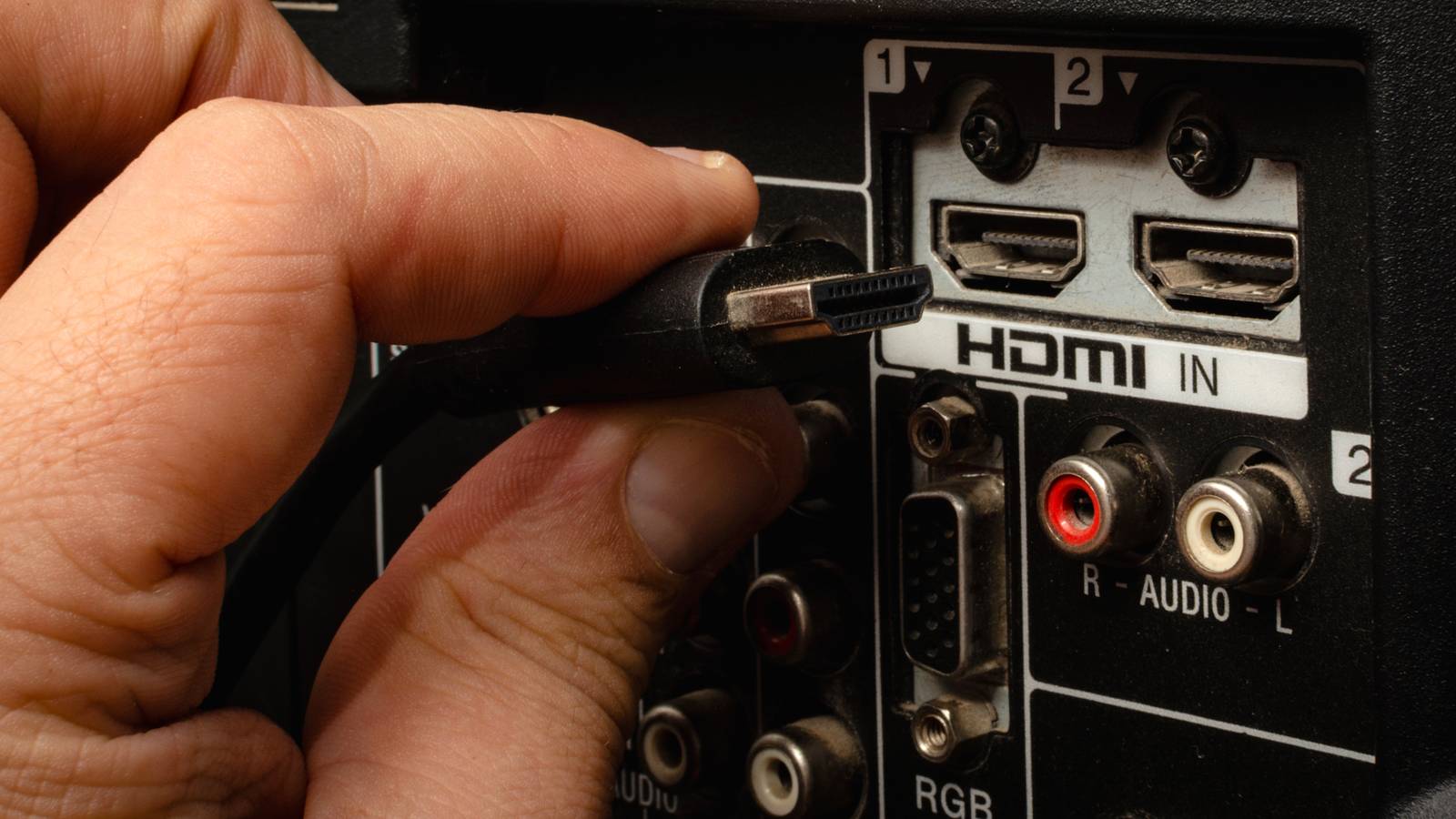
If you’ve bought a newer TV, especially one that is mid-range or better, there’s a good chance you’ve got at least one HDMI 2.0 or 2.1 input on your display. Just check for a 4K@120Hz or even an 8K label by your ports, and see which ones support it. By activating HDMI 2.1 features, you’ll unlock a gamut of additional settings and can take full advantage of your PS5 or Xbox Series X|S features, and get the best picture possible. To find this setting on some of the most popular brands, you’ll need to check the following spots:
Samsung | Input Signal Plus / HDMI UHD Color | Settings > General > External Device Manager |
|---|---|---|
Sony | HDMI Signal Format | Settings > Channels & Inputs > External Inputs |
LG | HDMI Ultra HD Deep Color | Settings > General > Devices >HDMI Settings |
Vizio | Full Color HDMI | Settings > Input Settings > Specific HDMI Input |
TCL / Hisense | HDMI Mode | Settings > Inputs > HDMI Mode > 2.0/2.1 |
Panasonic | HDMI Auto Setting | Setup > HDMI Auto Settings > Set To Mode 2 |
What makes this more confusing is that manufacturers love to use proprietary names for their version of “Input Signal Plus”, making the process of stumbling across it even more confusing than most users would potentially ever think. But by turning this setting on, your display can use the HDMI 2.1 signal to its fullest potential. 4K/120Hz on compatible displays, full HDR support, and VRR are just some of the upgrades you may immediately see.

My Samsung TV’s picture looked wrong for months — disabling these defaults fixed it immediately
You need to change your default TV settings right now.
4:4:4 chroma sub-sampling for PC use
If you’ve ever wanted to use your PC with a massive TV, try this

While I’ve officially graduated from a dual monitor set-up to a triple monitor setup, now that I’ve finally got my hands on the right cord for my portable monitor, I’ve always dreamed of using a 50″ display or larger as a PC monitor. But if you’re up close and personal to a PC plugged into a TV, you may notice that text doesn’t have that same crispiness that you’re used to on a proper computer monitor. If your display has Input Signal Plus, you may be able to make this work to your advantage.
By enabling this feature and using the HDMI 2.1 port, 4:4:4 chroma sub-sampling is typically enabled by default. Most TVs use a 4:2:0 sub-sampling ratio, which means that color is shared across a 2×2 block of pixels. It looks great for TV shows and movies, but terrible for text. 4:4:4 sub-sampling means that every pixel gets its own color, which is why a monitor typically looks sharper than a TV when you’re showing text. By enabling Input Signal Plus, you can get that same level of detail and clarity. Some TVs also have a dedicated “PC” option to make this look even better, so check and see if your display has this option too.
ALLM on by default
Auto Low Latency Mode will turn on “Gaming Mode” by default
Game mode is one of the best features of modern-day TV sets. Back in the day of CRT television sets, there was basically no input latency, meaning that games were essentially one-to-one with the buttons you pressed. When the era of HD began, some displays had an input latency of up to 100ms, making movements feel sluggish and unresponsive. Game modes were added to TVs to try to alleviate this issue, but much like Input Signal Plus, you may need to go into the settings to enable it.
Well, if your display has Input Signal Plus capabilities, then you won’t need to worry about that. It should automatically toggle Game Mode on when it detects that you’re using a gaming console, unlocking features like Variable Refresh Rate for your favorite games if it’s supported. You may notice some more jaggies and stuff like that, but I’ll take a higher refresh rate over that, you know?
Older device compatibility is iffy
Some devices just don’t know what to do with this setting

If you’ve got an older Blu-ray player or your cable company hasn’t updated your box yet, you may want to hold off on toggling these features. Some of these older devices don’t play well with the “enhanced” features, resulting in black screens, pictures with no sound, and other technical woes that may not be worth the hurdles. I know on my Samsung TV, I’m able to pick and choose which outputs get these features, but I can’t say if it’s the same on other TV sets. Some TV sets, like Sony Bravia TVs, also only allow users to either have Dolby Vision or VRR enabled, so you’ll need to pick and choose what benefits you’d like to see.
Seeing as some folks are hesitant to upgrade their older tech, seeing as it still works “as good as new”, this setting is typically off by default when a TV is powered on for the first time. If you have older tech, plug it in and enable this feature to see if it works. If not, toggle the setting off again, or it may be time to upgrade to something a little newer, unfortunately.

- Brand
-
Onn
- Operating System
-
GoogleTV
- Downloadable Apps
-
Google Play
- Resolution
-
4K
This feature plays well with newer tech
Better picture, better refresh rate, happy users, and a reason to upgrade
There are a ton of settings available on your TV that can make it shine brighter than it ever did on the storefront, and this is one of the best that you can use. Even if you’re not a gamer by trade, enabling Input Signal Plus, or whatever it may be called on your device, can make your HDMI device shine brighter than ever. A proper HDMI 2.1 cable and this setting make newer-generation consoles sing, but HDMI 2.0 features are also still incredibly nice.
Most “cheap” HDMI cables are capable of taking advantage of HDMI 2.0, so you may just need to flip the proverbial switch to get an even better picture on your favorite display. Just make sure that you’re using the right HDMI port when you plug in your device, and get ready to see your favorite games and movies in better quality than ever before.
