
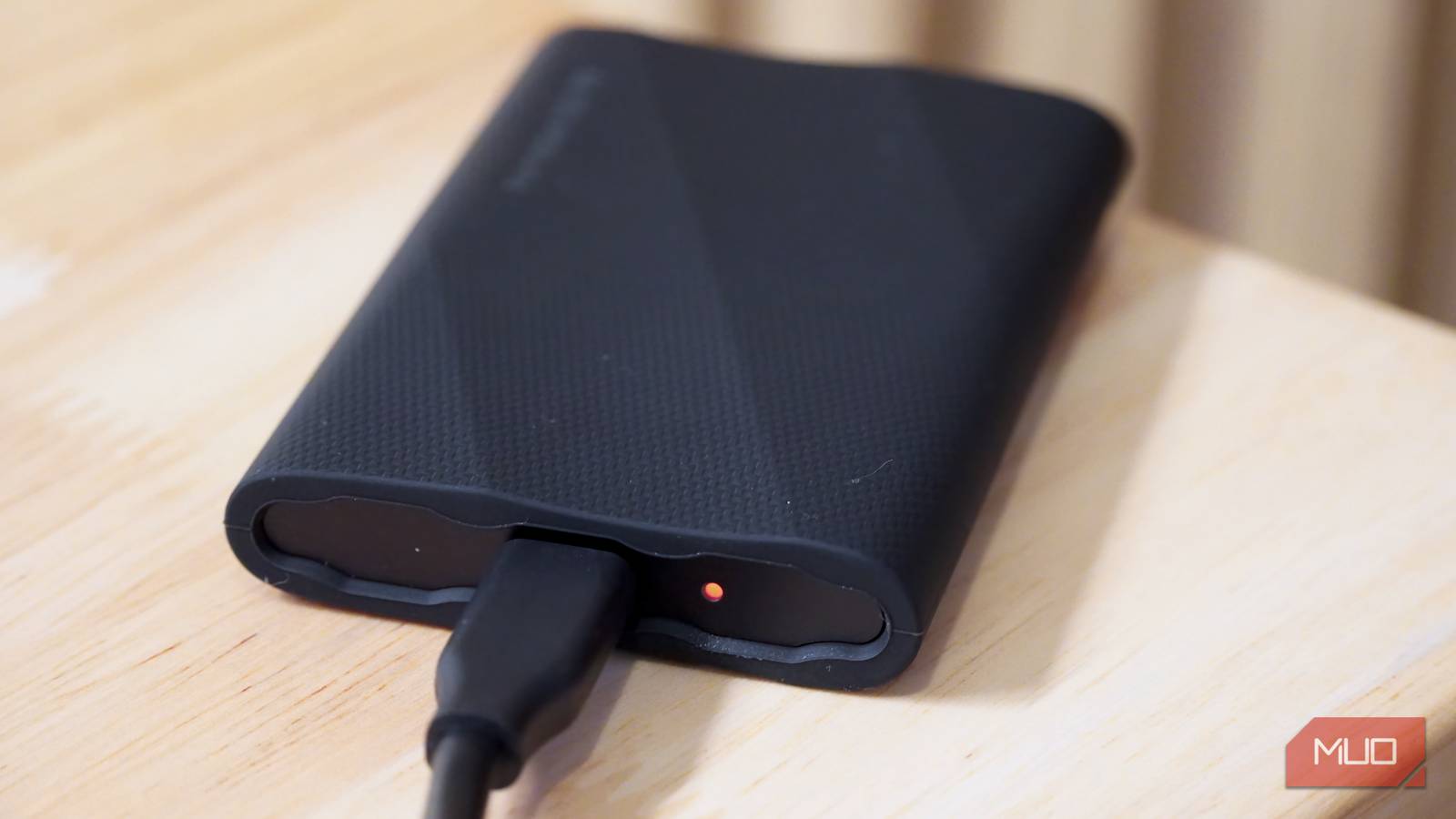
Most people install an SSD, let Windows handle the basics, and call it a day. While Windows’s built-in monitoring tools might seem adequate, your SSD’s manufacturer already has a free, purpose-built program that can run circles around anything Windows has to offer.
These vendor utilities aren’t bloatware either. They’re often the only way to unlock firmware features, performance modes, and secure data removal options that generic Windows tools simply can’t. Buying a 4TB SSD may be the best investment you ever make, but unless you can monitor it and make sure it performs at its best, you’re wasting money.
Samsung Magician is secretly a power user’s dream
Firmware updates, benchmarking, and tuning—all in one clean tool
Samsung’s Magician utility is probably the best-known example of what a mature SSD utility looks like. It lets you manage both Samsung’s internal and external SSDs via a simple dashboard that surfaces health, performance, and compatibility at a glance. Once inside, you can benchmark the drive, run diagnostic scans, optimize performance, configure over-provisioning, and apply firmware updates with a few clicks.
Magician splits its feature set into sections like Drive Information, Drive Management, and Data Management, which makes it easy to navigate to whatever feature you need. The drive information section covers model details, interface, capacity, and basic health, which the drive and data management sections hold performance optimization, secure erase, and data security features that Windows won’t show you. If you’re using a Samsung SSD, this tool is essentially the control panel for the drive’s firmware, not just a flashy health indicator.
- OS
-
Windows, macOS, Android
- Developer
-
Samsung
- Price model
-
Free
An all-in-one SSD toolkit for monitoring health, updating firmware, benchmarking performance, and optimizing your drive.
Crucial’s Storage Executive has a hidden speed boost
Momentum Cache can make your SSD feel ridiculously fast
If you’ve got a Crucial drive, Storage Executive is the app you need. It’s a free downloadable tool that lets you see how much space you have used, monitor operating temperature, check overall health, and ensure you’re on the latest firmware. That feature set alone beats anything the standard Windows settings UI for SSD visibility can provide.
The standout feature here is Momentum Cache. When enabled, this feature uses system RAM as a write cache, which can make many SSD operations up to ten times faster in synthetic tests by buffering small random writes and flushing them efficiently to the drive. Storage Executive also lets you reset the drive’s encryption password, securely clear all data on the SSD, and verify the exact model for warranty purposes.

- OS
-
Windows
- Developer
-
Crucial
- Price model
-
Free
A simple SSD utility that lets you monitor drive health, update firmware, and enable Momentum Cache for faster performance.
Different brands, same story—useful features hiding in plain sight
Western Digital also has an SSD dashboard (now called Sandisk Dashboard) that gives you a clear status view of how much free and used space you have, remaining SSD life, and even PCIe lane usage, meaning you can confirm whether your NVMe drive is actually running at the link width and speed it should. Insight like this can come in very handy when troubleshooting performance drops that Windows tends to happily ignore.
ADATA’s SSD ToolBox provides both drive information and tuning abilities. It shows detailed health and wear data, including SMART attributes, and adds features like Security Erase to completely wipe the drive when you’re repurposing or selling it. Additionally, there’s a System Optimization section that can tweak OS-level settings to reduce unnecessary writes and extend lifespan, again extending far beyond what generic optimizing options in Windows do.
Kingston’s SSD Manager is also similar. You can monitor health and usage, update firmware, perform secure erases, and manage advanced features like TCG Opal and over-provisioning via a host-protected area. If you’re using encrypted drives or planning for long-term reliability, these are critical, vendor-specific controls Windows just won’t offer.

- OS
-
Windows
- Developer
-
Sandisk
- Price model
-
Free
A lightweight tool for monitoring SSD health, updating firmware, and tracking performance with a clean, no-nonsense interface.
Intel, Seagate, and Kioxia bring their own advantages
Health checks, firmware tools, and performance tweaks you won’t get elsewhere
Not all vendors care much about drive utilities, but even those provides tools that are more capable than their Windows counterparts. Intel, for example, ships a Memory and Storage Tool which is a unified manager for Intel SSDs and Optane devices, replacing the older program with a redesigned interface while keeping drive management and firmware update options and including support for data center models. If you’re using an Intel SSD in a workstation or small server, this tool is often the only supported path for safe firmware updates and in-depth diagnostics. That said, Intel has discontinued the tool because of a vulnerability and has asked anyone using it to use alternatives.
Seagate’s SeaTools are often still associated with hard drives, but they fully support SSDs. You get SMART attribute visibility and a set of non-destructive diagnostic tests. It also works with non-Seagate drives, making it one of the few manufacturer utilities that can be used as a general health checker for any drive while still offering vendor-grade tests.
Last but not least, Kioxia’s SSD Utility, built for Toshiba and OCZ drives, focuses on tuning and monitoring. You get status views and maintenance tasks aimed at keeping supported SSDs under peak performance.

- OS
-
Windows
- Developer
-
Seagate
- Price model
-
Free
A diagnostic utility that checks drive health, runs hardware tests, and helps detect potential failures before they become serious.
Your SSD’s own software beats Windows every time
Almost every major SSD vendor gives you a free Windows utility that knows the drive’s firmware inside out, can read every relevant SMART attribute, apply critical updates, securely wipe data, and sometimes even enable extra performance modes based on your drive. Windows, on the other hand, might be slowing down your SSD, and only offers a generic health flag, basic TRIM scheduling, and a few storage settings buried under layers of menus. “Pro” SSDs may not be all that good, but these tools will do wonders for your drives.
That doesn’t mean you should leave these tools running permanently in the background or blindly optimize your drives. The right move is to install the appropriate utility, run it periodically to check health, temperature, and troubleshoot performance. Do that, and the free tool your SSD manufacturer quietly offers becomes a powerful and practical way to get more performance and longevity out of your drives.
