
I don’t know about you, but PDF editing has always felt more complicated than it needs to be. Sure, there are plenty of online tools that get the job done, but uploading a document every time I want to edit it isn’t exactly convenient. There are also desktop tools like Adobe Acrobat, but they often come with a price tag. PDFgear comes close to being a good option, but it’s hard to say how long it’ll stay free.
LibreOffice Draw is different. It’s not marketed as a full-blown PDF editor, yet it can handle most editing tasks with ease. It’s free, open-source, and refreshingly simple to use.
- OS
-
Linux, Android, Windows, macOS
- Developer
-
LibreOffice
- Price model
-
Free (open-source)
The underdog that beat the big names
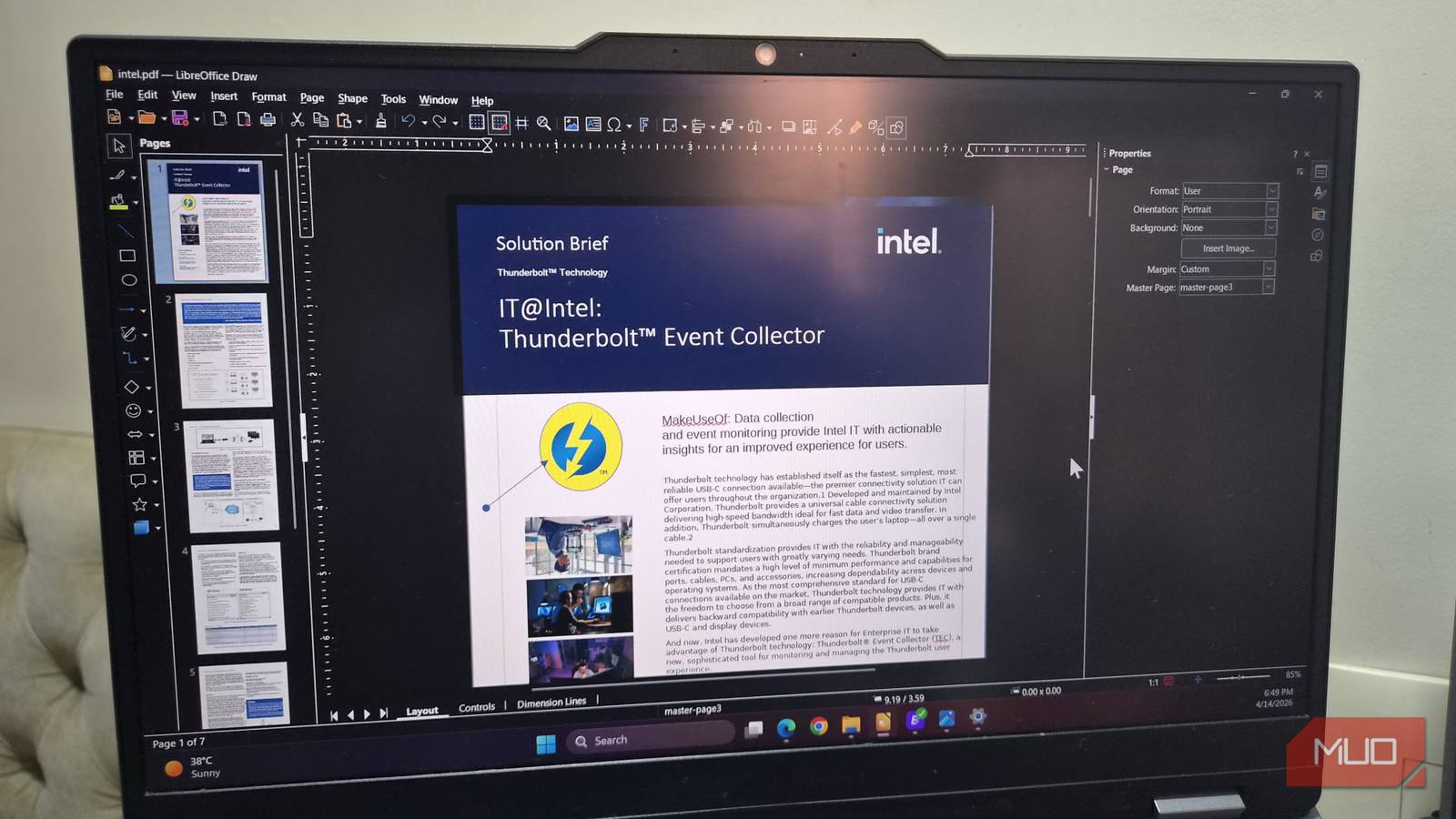
Most people only use LibreOffice Draw for creating diagrams and vector graphics. But it can also double as a handy PDF editor. Opening a PDF inside Draw is as simple as dragging the file into the app. Once it loads, you’ll see all the essential tools at the top.
Draw automatically breaks your locked document into clickable elements, so you can get started right away. Click on any text block and start typing. It’ll keep the original formatting intact, so you don’t have to worry about the font style, size, and spacing. Adding new text is just as easy. Head to Insert > Text Box or press F2, then draw a text box anywhere on the document. Type in your text and use the formatting options on the right, just like you’d in a word processor.
And since Draw is primarily for design, it comes packed with annotation tools. The Shapes menu at the top gives you access to lines, arrows, squares, and icons. You’ll also spot some of these in the left sidebar for quick access. Once you’ve added a shape, you can tweak everything about it, from position and size to color and transparency.
Working with images is just as easy. Right-click on any image in your document, and you’ll get options to delete, resize, and replace it. You can also add new images and edit them the same way.
Manage pages and sign documents with ease
All the tools in one place

Editing a PDF is rarely only about just changing text. More often, you need to rearrange pages, remove sections, or insert new ones. The Pages panel in Draw lets you see all the pages at a glance, so you can easily go to the page you want to work with. From here, right-click on any page, and choose the relevant option to remove, duplicate, and copy it. Similarly, it’s possible to add new pages too. And to rearrange, click, drag, and drop a page into its new position. It works exactly like you’d expect.
If you need to sign the PDF, you can pick the freehand drawing tool from the left sidebar and sign directly on the page. Once done, resize the signature, move it around, and position it exactly where it belongs. And if you already have your signature saved somewhere, that works too. Simply insert it as an image and place it on the document.
It’s fast, free, and open-source
The rare tool that asks for nothing

One of the biggest surprises with LibreOffice Draw is not just what it can do, but how easily it does it. Even large, complex PDFs open without fuss, and the interface is all about ease of use. It also has all the necessary tools to act as a solid PDF reader. You get features like find and replace, page orientation controls, different viewing modes, and flexible zoom options.
And there’s the price. It’s completely free with no ads or trial countdowns hovering in the background. And yes, it works offline, and there’s no need to create any accounts. Compared to tools like Adobe Acrobat that constantly push prices of their premium tiers, this feels simple and honest. Being open-source means you don’t have to worry about hidden data collection or foul play.
It can’t do everything
The trade-offs worth knowing

LibreOffice Draw is surely impressive, but there are still areas where it disappoints. For starters, its interface is functional but slightly dated. If anything, it resembles older desktop apps from the last decade, which can take some getting used to.
There are also some key features missing. You can’t merge or split PDFs directly within Draw. There’s no built-in option to compress or convert PDFs into other formats like Word. These are things that most PDF editors handle out of the box. For anything like that, you’ll still need to rely on tools like PDF24 or iLovePDF, which isn’t too bad since they’re also free.
Finally, you may run into instances where certain PDFs don’t behave or export as expected. It doesn’t happen often, but when it does, it can be slightly frustrating.
While there’s no shortage of good PDF editors out there, it’s rare to find one that’s both feature rich and also completely free. LibreOffice Draw is somehow exactly that. Sure, you’ll still need to use other tools from time to time, but for most things, Draw gets the job done without making a fuss.
