
For years, permissions management has been an essential part of privacy optimization on Android. For over 10 years, Android has offered advanced control over which apps have access to which permissions. Recent versions of Android have also introduced granular control over permissions, such as media access.
However, only a few are aware of a second permissions menu on Android because these options are not as frequently shown in prompts as the primary permissions, like camera, microphone, and media access. Despite being quieter, options on this second permissions menu can have a serious impact on how apps have access to system permissions.
You only know half the story
The permission pop-up only does so much

As I said, Android has improved how we handle permissions. Thanks to the Permissions Manager interface in Android settings, users can get a quick overview of what happens on their device. The permission prompts you encounter while installing and using an app are a great way to control whether an app can access the camera, storage, microphone, media, etc. Because everything is opt-in, Android users often rely entirely on permission pop-ups. However, these prompts address only half of the story.
It happens because permission prompts do not cover system-level permissions. We are talking about permissions that allow apps to create an overlay, access notifications, access device usage data, bypass restrictions, etc. As you might expect, these system-level controls have a deeper impact on your device’s privacy and security! Fortunately, since version 8, Android has offered a way to manage these advanced system permissions.
Meet the menu nobody told you about
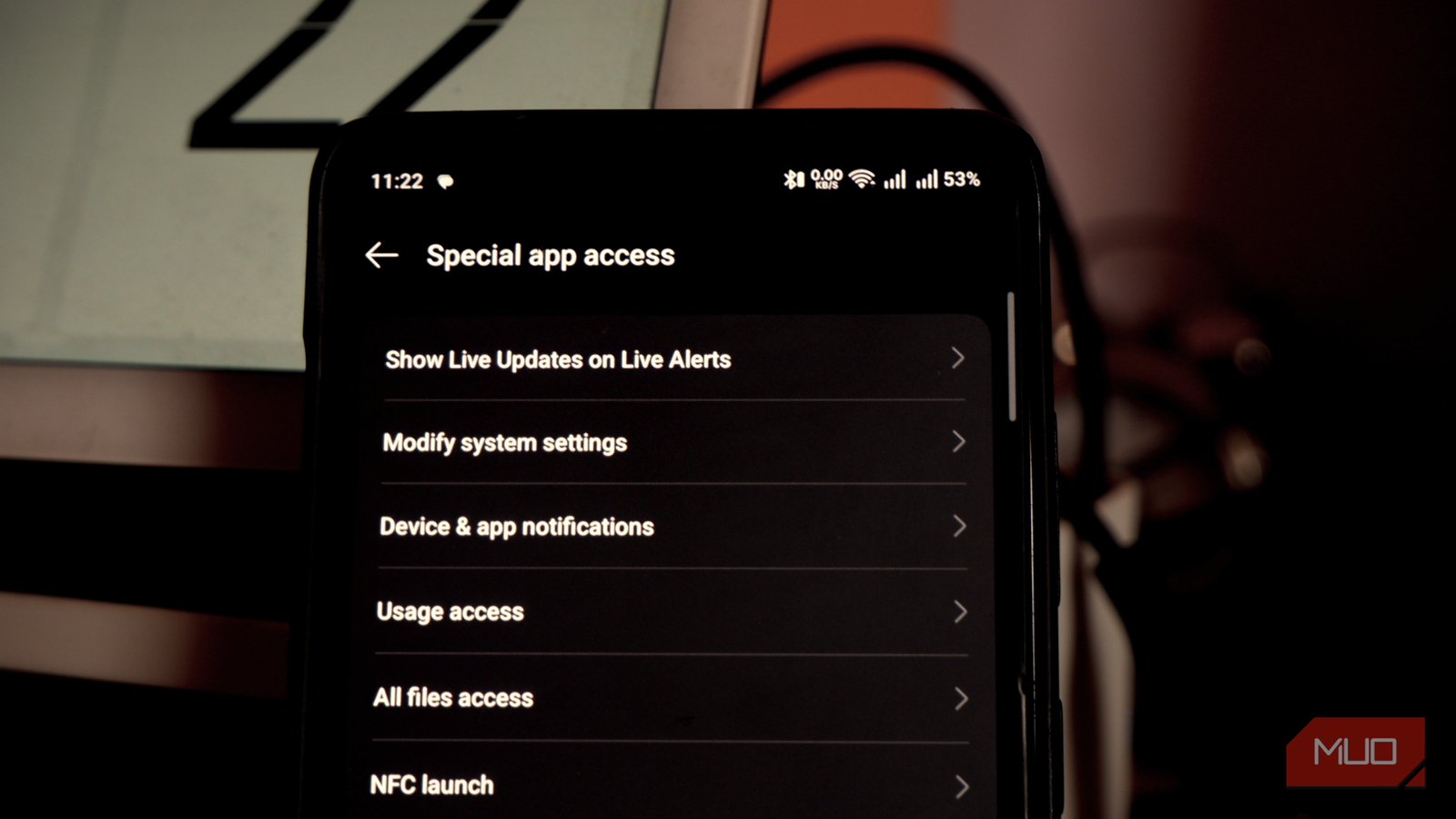
It’s called Special App Access

Special App Access is one of those settings you don’t see at first. For what it’s worth, this menu is not even highlighted in the Privacy section. Instead, you have to go to Apps -> Advanced (optional) -> Special App Access to access these options. However, the options you see inside may blow your mind.
Though it is kept in such a place, many apps may already have access to these permissions (more on that later). Moreover, manufacturers may rename Special App Access and place it inside other menus. So, you may have a hard time locating these options on your device. Nevertheless, the options in the menu remain crucial for understanding how apps access privileged information on your device and dictate their behavior.
Even though most of these permissions are defined by the Android system, some OEMs may add extra special access permissions. They could be used by system apps and third-party ones, as the case may be.

- Brand
-
Google
- SoC
-
Tensor G5
- Display
-
6.3″ Actua display
- RAM
-
12 GB
Google’s flagship smartphone, the Google Pixel 10 features the Tensor G5 processor, an outstanding triple-camera system, and seven years of software updates. This is a phone you can rely on for years to come.
The permissions there are a lot
These are not small permissions.
As I said earlier, the permissions included in the Special App Access menu are not simple by any means. Here are a few that matter the most:
- Usage Access: This permission allows apps to gather usage data from your device. For instance, it will learn which apps you use, how much time you spend on each, and how often you use them.
- Display over other apps: This permission lets apps display their UI over everything else. While chat bubbles and accessibility apps use this option quite often, there is enough potential for misuse.
- Notification Access: Apps with this special access can access all the notifications you receive on your Android smartphone. It may also have access to sensitive content, as the case may be.
- Modify system settings: If an app is granted this privileged permission, it can modify your device’s system-level settings without your explicit confirmation each time.
- All files access: As the name suggests, this permission lets an app access all files and folders on your device. It can easily modify these files as well. Note that this is different from media access permission.
In addition to these, a few more exist, such as premium SMS access, Wi-Fi control, Picture in Picture, Display pop-ups while in the background, sending full-screen notifications, Alarms & reminders, NFC launch, and Turn screen on. You should also note that not all permissions in the list are high-priority.
Many apps may already have access
Thanks to the onboarding screen

Open this section via Settings, and you’d probably be surprised to find quite a few apps on the list. There’s a common reason for this, and it has to do with how many Android apps have an onboarding screen.
Let’s admit it: after a while, many of us don’t pay attention to the specific permissions we allow. It becomes a mechanical task of clicking Allow. However, during installation and setup, some apps may also ask for these special access permissions. You end up enabling these options even though the Android settings mention potential issues with the permissions. This is how you end up with a list of apps with privileged permissions.
On the bright side, this is something a thorough audit can fix.
Here’s what you should do
It’s easy, actually
Auditing special app access permissions is easier than you think. Here’s a blueprint you can follow:
- Open Settings on your Android.
- Navigate to Apps -> Special App Access.
- Explore each category and consider each app that has been allowed.
If you feel an app has access to a feature it does not absolutely require, revoke the app’s access to that permission. For instance, a calculator app does not require access to your usage pattern or notifications. Similarly, a weather app does not need an overlay permission, and a social media app does not need the Install unknown apps permission.
To be fair, not every app is up to something
The point of this article is not to frighten you. Also, don’t be paranoid, thinking that all apps are there to get you. On the contrary, you can use this newfound knowledge to understand whether any problematic apps are exploiting these permissions.
However, if you think an app uses the permissions for an appropriate feature, you can let it be. For instance, many accessibility apps need permission to display over other apps to work properly. Similarly, a notification mirroring app would require access to app and device notifications.

Change These Settings to Stop New Android Apps From Spying on You
Freshly-installed apps can do a lot more than you’d like, until you rein them in.
