
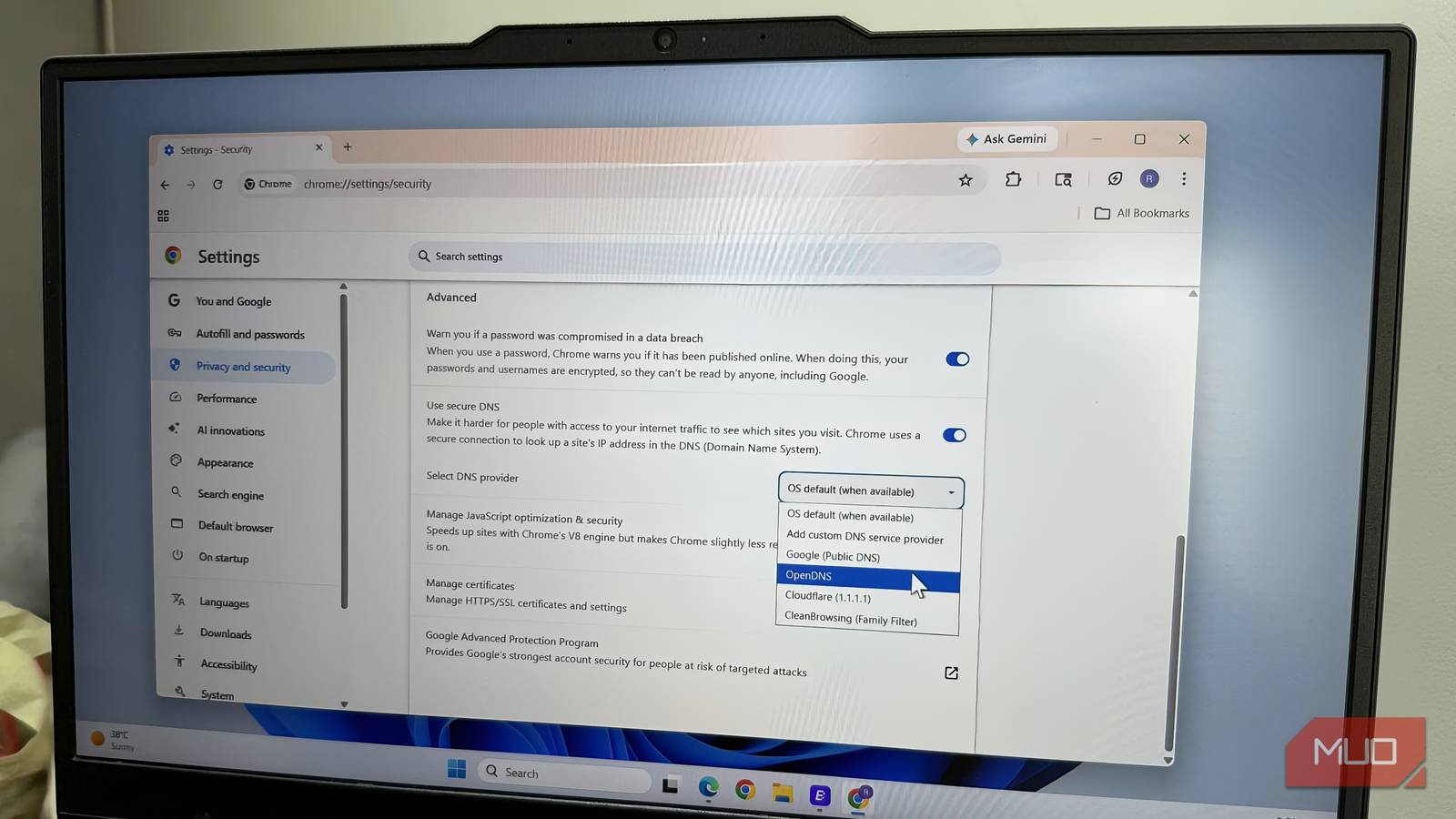
Your browser is something you use every single day, on almost all your devices. So how it is set up matters. And no, I’m not talking about what theme it has, the extensions installed, or even the performance tweaks.
What I never skip is switching the DNS, simply because it affects browsing speed, privacy, and security. So if DNS isn’t optimized, everything that follows feels slightly slower, less private, and more restricted than it should be.
How DNS shapes your entire browsing experience
The part of browsing you don’t see but always feel

DNS stands for Domain Name System. Every time you type a website name into your browser, DNS is the thing that translates that human-friendly name, like makeuseof.com or google.com into an IP address. This translation step happens before the page starts loading, and your browser has to do this for every page you visit.
Now, DNS affects your browsing experience in more ways than one. The most obvious impact is speed. If the DNS server is slow or unreliable, it’ll take more time to convert domain names into IP addresses. This delay may not be enough to break the experience, but enough to make browsing feel slightly off. And since your ISP has full control over the DNS, they can even block certain sites by simply not resolving them.
The bigger issue is privacy. Your DNS provider can see which websites you visit and when. Of course, it can’t see what you actually do on that website, but it can still log every link you click with the exact time stamps. This kind of information can help them build your profile. They can even sell this data to advertisers to turn a profit.
Finally, there’s the security angle. Traditional DNS requests are not always encrypted. That makes them vulnerable to man-in-the-middle attacks, where a bad actor might intercept and alter the request. So, instead of giving your browser the correct IP address, it may return a fake one to redirect you somewhere else entirely.
Choosing the right DNS matters
Not all servers are created equal
By default, both your PC and the browser use whatever DNS is provided by your Internet Service Provider (ISP). The good news is you are not stuck with it. There are plenty of free, third-party DNS services you can switch to. Now, this is where it gets interesting because every DNS provider offers something different, so choosing the right one can make all the difference.
Some DNS services focus purely on speed. They use large global networks and smart routing to resolve domain names faster than your ISP ever could. Others advertise themselves as privacy-friendly. These providers promise not to log your activity, build profiles, or sell your data. Then you have security-focused options that block malicious domains, phishing sites, and known trackers at the DNS level. This means these domains don’t even get a chance to load in your browser. And finally, some services give you extras like ad blocking, parental controls, and content restrictions, which are ideal for families and shared devices.
All of this means there’s no single “best” DNS server for everyone. It really comes down to what you value the most. Speed, privacy, security, or extra control. Even after you’ve figured that out, you’ll have plenty of options in every category, so choosing the right one takes a bit of comparison.
For instance, if your priority is speed, you’ll come across names like Google DNS, Cloudflare, Quad9, and NextDNS. In that case, you can rely on sites like DNSPerf. They constantly update their database so you can check how a specific DNS provider performs in terms of raw speed, uptime, and quality. Another option is to head to the DNS Speed Test Benchmark and run a quick test. This will help you see how different DNS servers perform on your specific network and location.
Most browsers make it easy to switch DNS
The best browser tweak you are ignoring
Once you’ve picked the DNS server you want to use, setting it up in your browser is as easy as it gets. Different browsers use different names for this setting, and the steps can also vary, but the overall process is quite easy to figure out.
Open the browser settings, type DNS in the search bar, and then locate something called secure DNS or DNS over HTTPS. Enable it and then use the drop-down menu to pick your preferred DNS. If it’s not listed there, choose Custom, and add its address manually.
Switching to a custom DNS in your browser is easy, but it’ll only affect that specific browser. The rest of your device, like other apps or even different browsers, will continue using the default DNS unless you change it there as well. You can also change the DNS at the network level. That way, every device that connects to that network will benefit from the set DNS.
