
I’ve spent 15 years writing about mobile operating systems. Yet I still get that “eureka” moment when I find a toggle I’ve ignored for three hardware cycles. It’s usually tucked away in a sub-menu with a boring name like “Gestures.” I scroll past it a dozen times before finally tapping it and wondering how I ever lived without it.
Quick Tap was exactly like that for me. I enabled it on a whim, fully expecting to forget about it within a week. Instead, it became one of the first things I set up on my Pixel 9 Pro XL. I’ve done the same on every Pixel I’ve tested since then, including older ones. Most Android users I know have never heard of it. Some have carried a Pixel for years and still haven’t stumbled across it.
That’s the thing about Android: it hides its best stuff just far enough off the beaten path that most people never find it. Here’s what I reach for every day, and a few others worth turning on while you’re already digging around in Settings.
Quick Tap on Pixel: Double-tap the back of your phone to trigger any action
How to find and enable Quick Tap on your Pixel
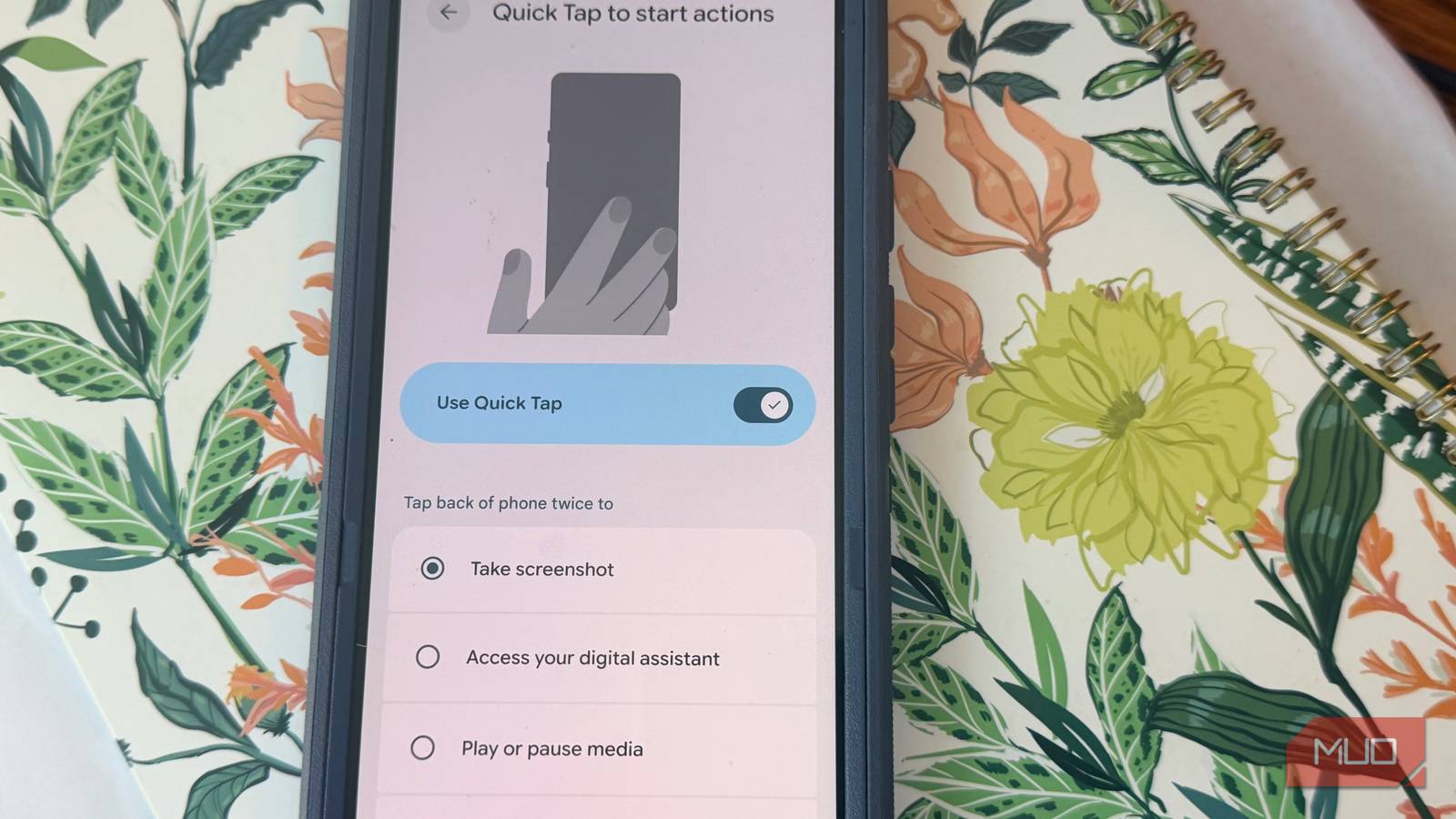
Quick Tap is a Pixel-exclusive feature that lets you double-tap the back of your phone to perform an action. Not the screen — the back, the glass panel. It may sound gimmicky. It isn’t.
You’ll find it in Settings -> System -> Gestures -> Quick Tap. After activating it, you choose an action for the double-tap: take a screenshot, launch an app, play or pause media, access your notification shade, or open Google Assistant.
I have mine set to take a screenshot. Before Quick Tap, every screenshot required a simultaneous press of the power and volume-down buttons. It’s fine in theory, but awkward when you’re one-handed and trying to capture something before it disappears. Now I double-tap the back of the phone, and I’m done. Once I made the switch, I stopped fumbling entirely.
Sensitivity is adjustable, which matters. Out of the box, it may miss some taps. Increase sensitivity by one level in settings if it still fails to register. Once calibrated, false triggers are rare; I’ve never accidentally activated it in my pocket.
One thing worth experimenting with: your case material affects sensitivity more than you’d expect. A thin silicone case generally doesn’t interfere at all. Thicker, rugged cases, especially those with reinforced corners and a textured back, can dampen the tap enough that you’ll need to bump the sensitivity up another notch or tap a little more deliberately. If Quick Tap feels unreliable on your first try, check what’s covering the glass before assuming the feature is broken.
The flashlight is another use case worth knowing about. A double-thump on the back gives you light without unlocking the screen or hunting for a Quick Settings toggle. This is useful when you’re fumbling with cables behind a desk in the dark. My setup has stayed on screenshots for months, but the flexibility is part of what makes this feature worth enabling.
If you’ve used an iPhone Pro with Back Tap, you already understand the concept. The Pixel implementation feels more confident. The haptic feedback is snappier, and I’ve found the Pixel registers taps more reliably. You don’t have to tap harder than feels natural. Apple’s version gets the job done; Quick Tap just feels better to use.
If you have a Pixel, go enable this now.
Three more Android features that quietly earn their place in your daily routine
Gboard clipboard history keeps everything you’ve copied just a tap away
Quick Tap is the one I reach for most, but here are a few others that have quietly earned a place in my daily routine:
This one works on any Android phone, and almost nobody uses it: Gboard clipboard history. When you open your keyboard in any app, look for a small row of icons above the letter keys. Tap the clipboard icon. You’ll see a history of everything you’ve recently copied: links, addresses, bits of text, all of it.
Here’s the annoying part: Gboard doesn’t keep clipboard items forever by default. Recent copies stay accessible for about an hour unless you pin them. Pin anything you know you’ll need again, and it sticks around indefinitely. I actually used this yesterday, moving a tracking number between my email app and a browser tab, the kind of three-app shuffle that used to mean recopying the same thing twice.
As a writer who moves text between Obsidian, browser tabs, and a CMS on a daily basis, the clipboard history has become a quiet workhorse. I’ve pinned my bio and a handful of links I paste frequently, so they’re always a tap away, no matter which app I’m in.
One thing worth knowing: clipboard history is stored locally on your device, not synced to the cloud. If you’re copying sensitive information, such as passwords and account numbers, be aware that it will sit in that history until the hour expires or you clear it manually. A small trade-off for the convenience, but worth keeping in mind.
There’s also Gboard’s secret cursor trackpad, which is also universal. Press and hold the spacebar while you’re editing text, then slide your finger left or right. The cursor moves one character at a time.
Try editing a URL in the back of a moving Uber by tapping the text directly. It’s a guessing game; your finger lands two characters off, you correct it, you overshoot the other direction. The spacebar trackpad makes it surgical.
A few places where this earns its keep: fixing a typo in a Slack message before you send it, adjusting a formula reference inside a Google Sheets cell, or cleaning up a URL mid-paste when only two characters are wrong. Any time you need to place a cursor precisely within a short string of text, this beats having to tap it every time. Once you know about it, you’ll use it constantly.
Finally, consider Notification history, located at Settings -> Notifications -> Notification history. Once you turn it on, from that point forward, Android logs every notification you receive, even ones you’ve already dismissed.
You know the situation: something pops up while you’re driving, you swipe it away without reading it, and an hour later, you have no idea what it said or which app sent it. Notification History keeps a running log so you can go back and check. It’s particularly useful for text previews you swiped without opening, or app alerts you dismissed and immediately forgot.
The log doesn’t go back forever; it keeps roughly 24 hours of history, but that’s usually enough to recover whatever you accidentally cleared.
These Android features are easy to miss — but worth finding
Android rewards anyone who takes a few minutes to open Settings -> System -> Gestures now and then and look around. Features like Quick Tap, clipboard history, the spacebar trick, and notification history aren’t hidden — they’re just easy to scroll past if you haven’t looked before.
If you haven’t explored your phone’s Settings and Gestures yet, do it now. You might uncover shortcuts that streamline your daily routine and boost productivity.
