
I have a complicated relationship with download managers. While some purists argue that the Command Prompt is actually the best download manager for Windows, I’ve always sworn by Internet Download Manager, which, in itself, is considered one of the best file download managers out there.I tolerated its garish toolbar and the annual license renewal that always seemed to sneak up on me right when I’d forgotten it existed. Things got messier during a stretch when I was splitting time between Linux and trying to find a capable Linux download manager. Then the cracks really showed: one app for torrents, a separate client for magnet links, and the browser fumbling through everything else with inconsistent results. I had four tools doing the job of one.
Then a Reddit discussion thread mentioned Gopeed in passing — specifically the phrase “it just handles everything.” I clicked mostly out of habit, expecting another niche downloader I’d forget about in a day or two. That was several weeks ago, and I haven’t gone back to my old setup since. Now, Gopeed has replaced my torrent client, the separate tool I used to download YouTube videos for offline viewing, and even Internet Download Manager itself.
Gopeed doesn’t try to impress you on arrival
Minimal on the surface, deep underneath
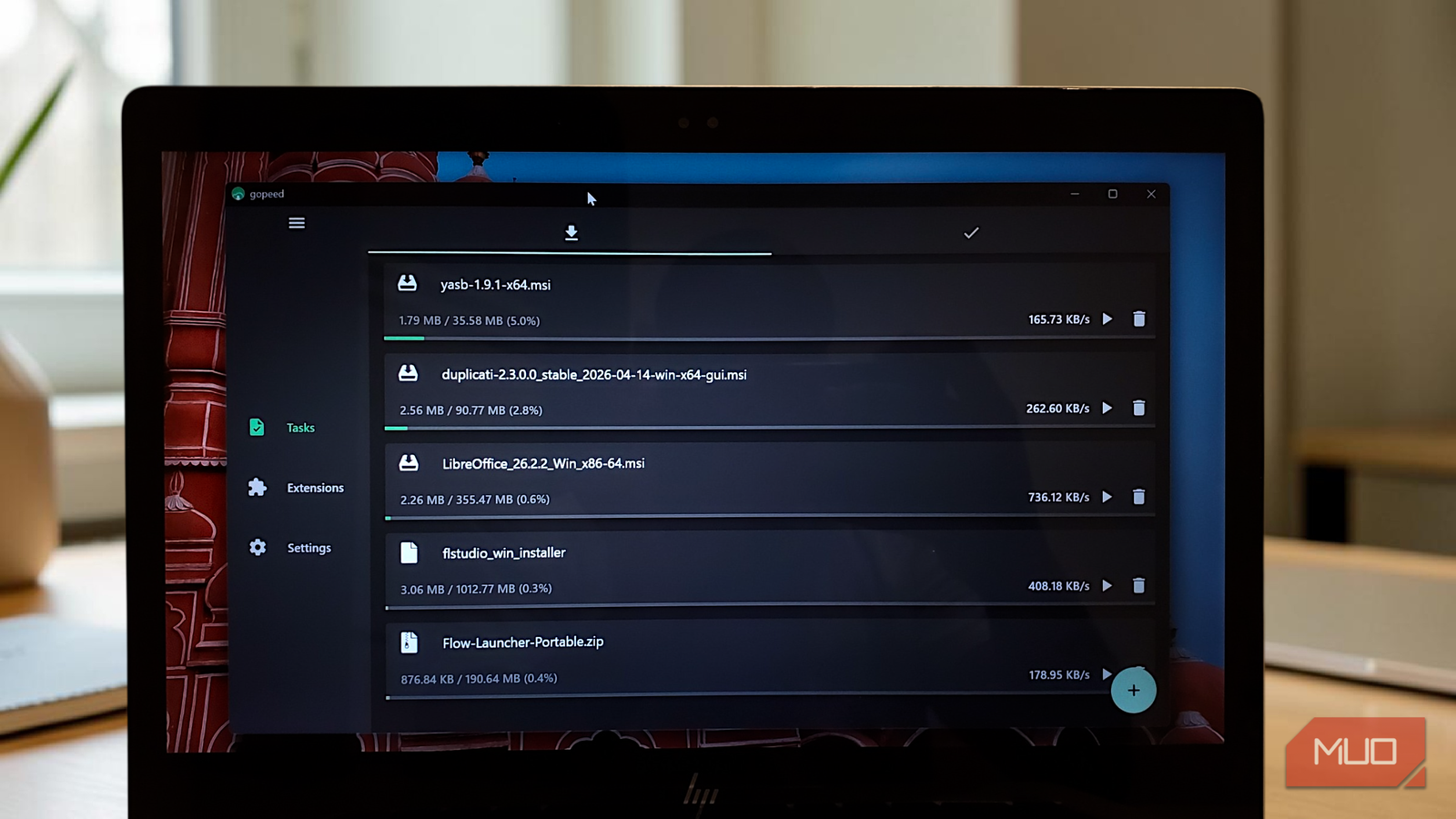
Gopeed makes a good first impression the moment you open it. The interface is clean, almost disarmingly so. A slim left sidebar holds exactly three items: Tasks, Extensions, and Settings. Along the top of the main area sit two icon tabs — a download arrow for active tasks and a checkmark for completed ones. That’s the whole navigation. When something is downloading, you see its filename, how far along it is as both a filled green bar and a percentage, the speed in real time, and an estimated time remaining. Everything you’d actually want to glance at, nothing you wouldn’t.
Starting a download is about as involved as it sounds: click the round green “+” button in the bottom-right corner, and the Create Task dialog opens. You paste your link into the Download Link field (you can add multiple links here, one per line), optionally rename the file, set the number of connections to use (it defaults to 16, which is already aggressive in the best way), and pick a destination folder. Right below the directory field is a Select Category row with options like Music, Video, Document, and Program. Each one automatically routes finished downloads into its own subfolder, which prevents the usual chaos of a single bloated Downloads folder.
I haven’t sorted a single file manually since I found these Windows apps that handle it automatically
These file sorting apps make file organization a breeze.
If you tick Advanced Options before confirming, a deeper panel unfolds. You’ll find a Proxy dropdown and, below it, two protocol tabs: HTTP and BitTorrent. Under HTTP, you can set a custom User-Agent, Cookie, and Referer header, which are handy for sites that gate files behind authentication or geographic restrictions. There are also checkboxes for skipping certificate verification, automatically creating a BitTorrent task when Gopeed downloads a .torrent file, and automatically extracting archives upon completion.
None of this is buried in a separate settings menu. It’s all right there in the task creation window, available for download when you need it.
It handles things your browser pretends not to know
It doesn’t ask what kind of link you just pasted
Right out of the box, Gopeed handles HTTP and HTTPS, BitTorrent, Magnet links, and ed2k links, all in one place. You no longer have to bounce between qBittorrent (or any other lightweight BitTorrent clients) for torrents and your browser for regular downloads. When you paste any of those link types into the task dialog, Gopeed figures out what to do without asking you to configure anything first.
The multi-connection engine is where the speed difference becomes obvious. For regular HTTP or HTTPS downloads, Gopeed splits a file into segments and downloads them in parallel over multiple connections. For large files, this can noticeably increase throughput compared to a single stream. You can tweak how many connections it uses when creating a task, and while the default is sensible, raising it for large files like system images or hefty installers can make a real difference.
On the BitTorrent side, it doesn’t feel like an afterthought either. You get selective file downloads if you only need part of a torrent, bandwidth throttling to prevent your connection from saturating, and support for DHT, PEX, and trackers. It behaves like a proper torrent client rather than a stripped-down add-on bolted to a download manager.
I should mention a couple of newer additions in recent versions. There’s an auto-torrent option in Settings that detects when you download a .torrent file and immediately spins up a BitTorrent task from it, and then there’s auto-extract archives, which does exactly what you’d expect. Once a compressed file finishes downloading, Gopeed unpacks it automatically.
The extension system makes Gopeed more than a download manager
Plugins that absorb your other utilities
Click Extensions in the sidebar, and you land on a proper marketplace where you’ll find a scrollable grid of community-built plugins, each displaying its star count, install count, author, and version number. You can sort by Most Stars, Most Installs, or Recently Updated, and there’s a search bar at the top if you already know what you’re after.
The catalog is quite stocked: YouTube and Twitter media downloads are there, as are extensions for Bilibili, MediaFire, TikTok (watermark-free, in HD), Instagram Reels, Pinterest, Pixiv, Huggingface datasets, GitHub Release assets, and GitHub repository batch downloads — among others. To install any of them, tap the card to open its detail panel, then hit the green Install button. The detail panel also shows usage instructions and any important caveats right there inside Gopeed, so you’re not hunting for a readme on GitHub to figure out how something works.
I’m going to single out the YouTube extension because it comes with a nuance that’s easy to trip over. Once it’s installed, when you paste a YouTube URL into the Create Task dialog, the extension resolves the link and prepares it for download. However, videos at 1080p and above don’t have audio baked into the video stream. So if you want the highest quality, you’ll need to download the audio and video tracks separately from the extension’s settings page, then merge them with ffmpeg. For anything up to 720p, the extension handles it cleanly in a single pass. It’s a platform limitation rather than a Gopeed shortcoming, and the extension documentation also spells it out plainly.
If you’d rather install something not yet listed in the Market, the Manual Install option at the top-right of the Extensions page accepts a direct GitHub URL. And if you’re the type who’d rather build than browse, a Develop Extensions button sits right alongside it. Extensions are written in JavaScript, and the API provides hooks at every stage of the download lifecycle.
If you’re even comfortable going a step further, Gopeed also exposes a full RESTful API, meaning you can script, automate, and integrate downloads programmatically into whatever workflow you’ve built around your machine. That opens the door to territory most download managers don’t even acknowledge exists.

- OS
-
Windows, macOS, Linux, Android, iOS, Web
- Developer
-
GopeedLab
- Price model
-
Free (open source)
Gopeed is a modern download manager that accelerates downloads using multi-threading and supports HTTP, BitTorrent, and more. It offers a clean interface and cross-platform syncing, making large downloads faster and easier to manage.
After this, going back feels unnecessarily complicated
Gopeed is free, open-source, and kept alive entirely by community donations. If you’ve been tolerating a download manager that is bloated, expensive, or just not designed for the way you actually work across devices and platforms, it’s worth trying it. The learning curve is short, the reward is disproportionate, and the exit from your old setup is actually painless.
