
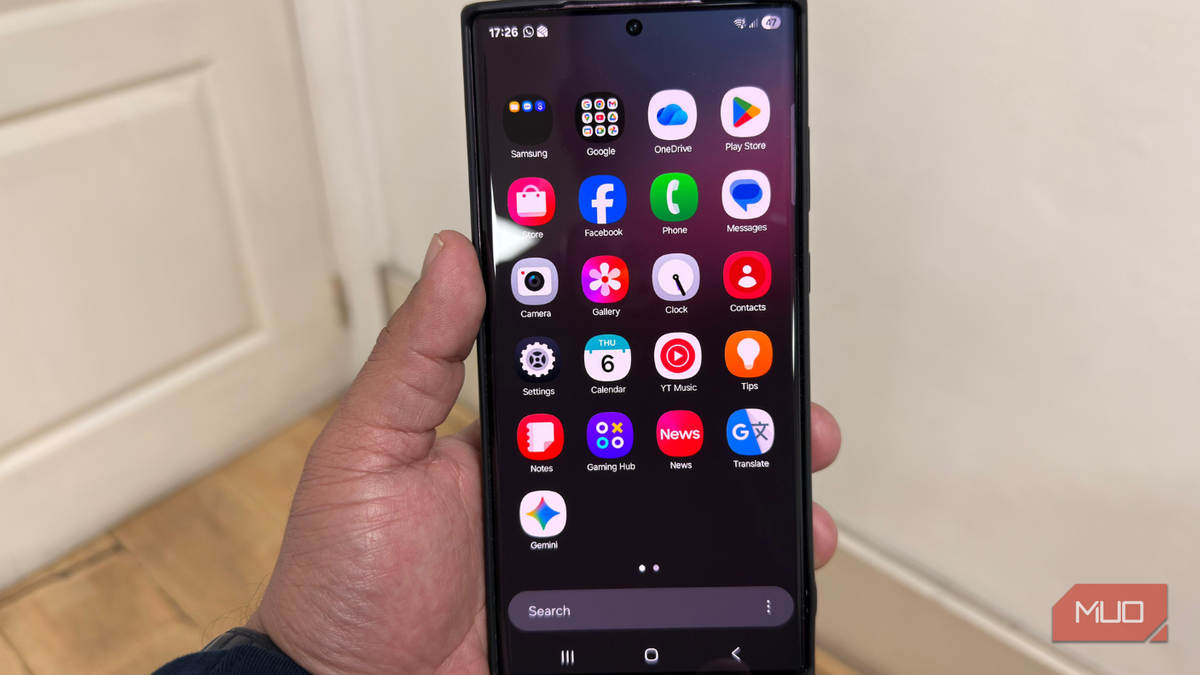
No matter which smartphone model you buy, it will stop feeling fresh after a certain period of time. The same happened to me. My Samsung Galaxy smartphone was not broken or slow enough to justify an upgrade. However, it just felt familiar and predictable. Apps opened fine, and the battery life was also okay. Technically, nothing was wrong, but the spark was almost gone.
Instead of replacing it, I decided to take a closer look at my settings. After browsing through the menu deeply, I changed three settings on my Samsung Galaxy. The result? My phone felt faster, cleaner, and more responsive. Before you plan to upgrade to a flagship Android phone, make sure to change these settings on your existing device.
Reduce animations
The instant speed boost trick
I’ll start by talking about the setting that gave me the most noticeable change: animations. Samsung smartphones feature smooth, animated transitions when you open apps, switch screens, or navigate menus. There’s no doubt that these visual effects look nice and give you a polished experience. However, they can also add a slight delay to everything you do. So, you might notice a slight lag when you swipe or tap your phone. Over time, that delay can make your phone feel sluggish.
That’s why I decided to turn off animations on my phone. I went to Developer options and adjusted Window animation, Transition animation, and animator duration scales. It instantly made my phone fresh and faster once again. Also, it did not break any functionality on my phone.
Here’s how you can do it on your phone:
- This feature is available under Developer Options. So, you have to enable that first. For this, open Settings -> About Phone.
- Tap the Build number seven times to enter developer mode.
- Next, go to System -> Developer Options.
- Under the Drawing section, look for Window, Transition, and Animator Duration scale options.
- Finally, turn off the Animation option in each one of them.
If you haven’t tweaked the animation settings before, this simple tweak can make your phone feel noticeably faster right away. Your phone will respond much faster than before.
8 Settings That Actually Make Your Samsung Phone Run Faster
Make your high-end phone actually feel high-end.
Disabling RAM Plus
When the boost becomes a bottleneck
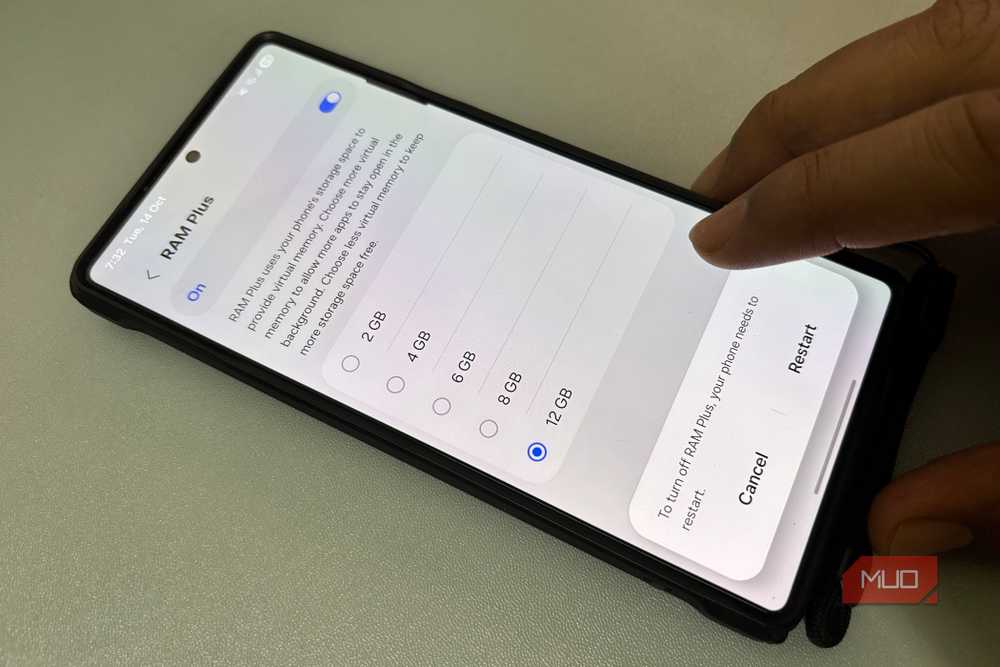
Samsung smartphones offer a RAM Plus feature that sounds great on paper but doesn’t offer much help in real life. Basically, RAM Plus uses a part of your phone’s internal storage as virtual memory. It is supposed to improve multitasking and performance when the physical RAM is full. This appears to be helpful, especially on phones with limited internal memory.
In real-life usage, RAM Plus might do the opposite. Instead of improving performance, it might trigger occasional delays when switching between the apps. It might also cause battery drain problems. That’s because the phone’s internal memory is much slower than the physical RAM. If your phone relies on virtual memory, it can increase loading times and cause stuttering. It is one of those features that look helpful but slow down your phone.
When I disabled RAM Plus, my phone felt more consistent. I no longer experience those micro-stutters when switching between tasks. If your phone has 8GB RAM or more, you can also safely disable this feature without worrying about performance. Open Settings -> Battery & Device care -> Memory > RAM Plus and turn it off.
You might lose a bit of background multitasking, but it won’t impact your everyday tasks like browsing, messaging, or social media.
Changing screen resolution
A simple but overlooked win
This one surprised me the most. My Samsung Galaxy S22 Ultra boasts a sharp Quad HD+ screen. However, it was not set to that resolution by default. Rather, it was set to a lower, FHD+ resolution to conserve battery. When I changed the screen resolution to QHD+, the difference in feel was immediate.
The higher resolution gave me the sharpest possible text and detailed images by using every available pixel on the screen. This is especially noticeable on larger screens. My display looks incredible and offers a more fluid experience. It’s worth noting that a higher screen resolution also uses more battery. Talking about the Galaxy Ultra, it’s already a capable and efficient smartphone. Even with the maxed-out resolution, I still get good battery life. So, no complaints.
To adjust the screen resolution on your Samsung smartphone, go to Settings -> Display -> Screen Resolution. You can choose your preferred option and tap Apply to save the changes. The newer models generally offer you three options: HD+ (the lowest resolution that maximizes battery life), FHD+ (the default, balanced option for everyday tasks), and QHD+ or WQHD+ (the maxed-out option for the best sharpness and clarity).
These three changes work so well together
We often assume that the only way to get a refreshed smartphone experience is to upgrade to a new model. In reality, Samsung smartphones are packed with some really useful features that can completely change how your phone feels in your hand.
I didn’t install any performance boosters or utilities. I just changed three settings on my phone. Individually, each tweak might appear to be small. When combined, they can transform the way your phone feels and behaves. None of them improves the actual hardware, but they genuinely improve your experience. And that is all that matters in everyday use. After making these changes, my Galaxy phone felt newer in a practical sense. It’s faster, smoother, and more responsive.
