
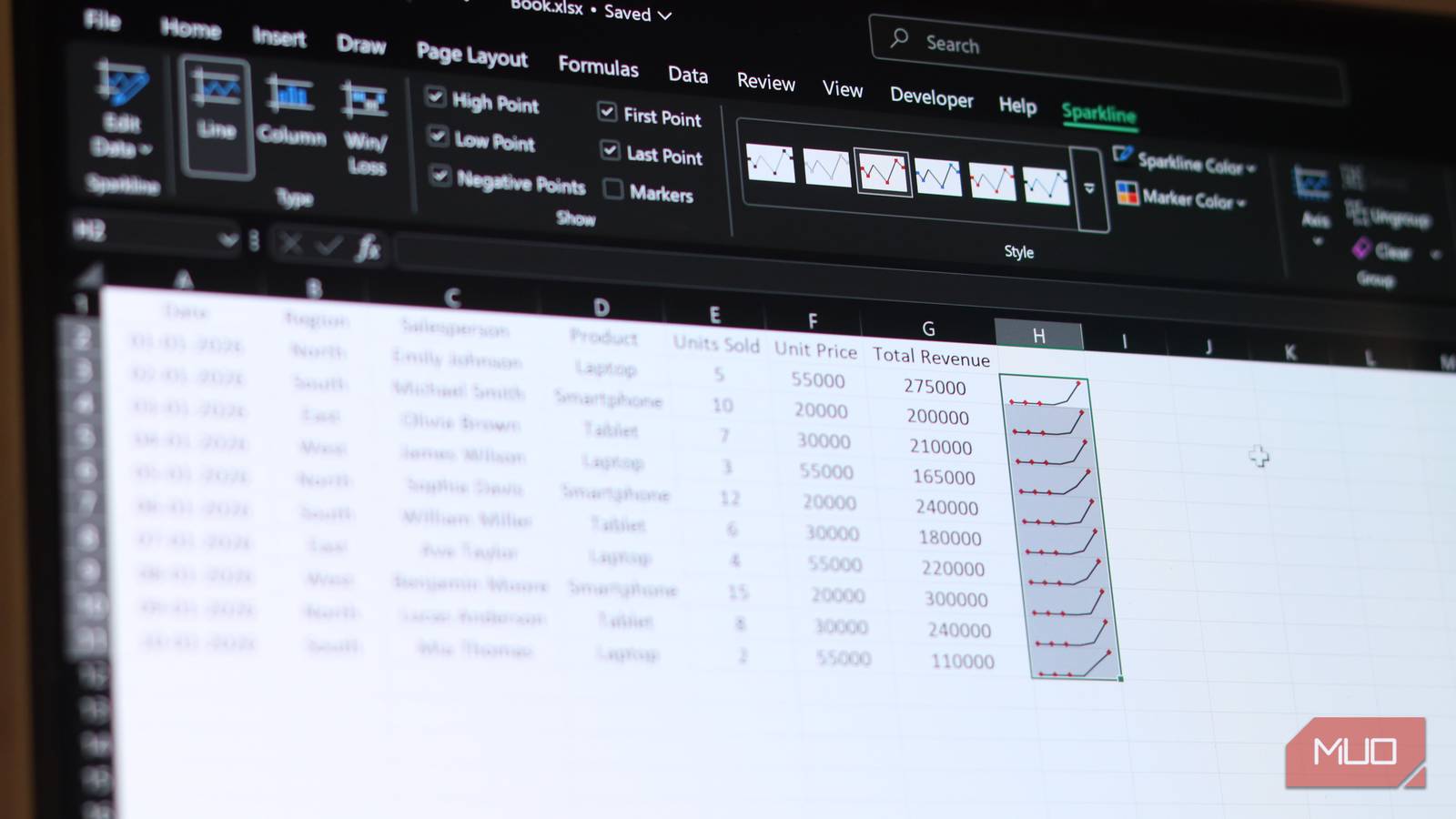
There are hidden features that sometimes even Excel pros discover after years of using the program. You might know how to build a bar chart and a pivot table, and you must definitely have struggled with chart formatting in the past. But there’s a little hidden feature which can completely change how you visualize data, especially if you’ve got a lot of it.
I’m talking about sparklines — tiny charts that live right inside a cell. If you’ve ever seen someone create a chart for an Excel table right within cells inside the table itself, you’ve seen a live example of a sparkline chart. I use Excel every day, and this is one of the features I can’t live without, after I discovered it.
- OS
-
Windows, macOS
- Supported Desktop Browsers
-
All via web app
- Developer(s)
-
Microsoft
- Free trial
-
One month
The tiny charts you’ve been overlooking
What sparklines are and why they matter
A sparkline is a miniature chart that lives inside a single Excel cell, and that’s the whole idea. Instead of creating multiple charts that take up a lot of space and can distract from the raw data you have in your sheet, you get a word-sized graphic that sits right next to your data, in the same row. Sparklines were added to Excel all the way back in Excel 2010. They don’t require any add-ins or workarounds, and it’s surprisingly simple to use them.
If you’re wondering where you can use them, the use case is almost obvious once you see them in action. Imagine you’ve got a table of monthly sales figures for multiple product lines. You could build multiple charts, but that would take up a ton of space, time, and all this visualized data will almost certainly require anyone accessing the sheet to scroll around.
With sparklines, you can simply add a sparklines column at the end of your table for every product and see the sales trend for every data point right next to the numbers themselves. And that’s what they bring to the table — visual context without taking up screen space.
Three types, three clear use cases
When to use line, column, and win/loss sparklines
As is the case with its many types of charts and graphs, Excel gives you three different types of sparklines, and they all do a specific job.
The most basic sparkline in Excel is a line sparkline, which resembles a tiny line graph showing trends over time. They’re perfect for continuous data, such as daily active users, monthly revenue, or any other metric that changes over time. If you want to show a trend and you’ve got a bunch of numbers over a specific period of time, line sparklines are the way to go.
Column sparklines, as the name suggests, work like mini bar charts. Each data point becomes a small vertical bar, making it easier to compare specific values side by side. They’re great when relative magnitude matters, and you want to show not just the direction, but the differences between individual periods.
Win/Loss sparklines are a completely different chart. They don’t care for how big or small a particular value is, but whether it’s positive or negative. Every positive value shows as a bar above the line, every negative one goes below. If you’re comparing data points like quarterly profits against losses, project outcomes, or even a team’s season results, Win/Loss sparklines can show the result of your data in a single cell without any visual chaos.
You can set them up in seconds
A 30-second trick that adds instant insight
The creation process for sparklines is as simple as Excel features can get. Just select the cell you want to insert a sparkline in, and follow these steps:
- Head over to the Insert tab in the ribbon and select your sparkline of choice from the Sparklines section.
- Select the data range that you want to use for the sparkline and click OK.
- If you want to add more sparklines for each row in your table, simply drag the first cell down like you would with a formula.
Another way of quickly creating sparklines is using the Quick Analysis tool: a box that’s one of the best shortcuts in Excel to create charts, totals, tables, sparklines, and format data.
Once you’ve created your sparklines, keep in mind that they’re live. So when you change a number in your data, the corresponding sparkline updates automatically. They also resize with the cell, so if you make a cell with a sparkline wider or taller, your sparklines get more detailed and easier to read.
You’ve also got plenty of options to customize your sparklines. After inserting a sparkline, a Sparkline tab will appear in Excel’s ribbon. Here you can mark the high point and low point in different colors, highlight the first and last data points, flag negative values, change sparkline and marker colors, and so on.
You can also group sparklines together so they share the same axis scale. This becomes important when you want to make fair comparisons across rows. By default, each sparkline scales independently to fit its given data range, which can make an otherwise flat metric look interesting when compared with other, possibly better metrics. Setting all sparklines in a group to use the same axis minimum and maximum points gives them the same reference scale and puts them on equal footing.
Excel doesn’t make sparklines obvious
One of Excel’s best features hides in plain sight
Despite the feature being quite useful, Excel doesn’t exactly announce it. Apart from the Insert menu and the Quick Access tool, sparklines don’t really show up anywhere in Excel’s helpful prompts. Even professional courses skim over them before moving on to more popular and traditional ways of visualizing data in Excel.

Excel finally fixed its biggest data entry problem, and it’s a lifesaver
One click in the Data tab can catch almost all issues.
But if you’re building complex dashboards, financial summaries, or working with any data that needs to visually show trends, sparklines can make your work look much cleaner and communicate much faster — without ever requiring a floating chart, distracting from raw data, or taking up too much screen space.
