
The common approach to a Blue Screen of Death (BSOD) — or, more recently, the black crash screen — on Windows is to note the stop code, then search online for a fix. I have followed these exact steps a few times and can conclude that it’s not efficient. You get to discover the kind of crash you had, but rarely does it uncover what triggered the crash.
That last piece is vital data that is kept in a minidump file on Windows. Using WinDbg and the !analyze -v command, you can explore crash data in plain language that makes fixing easier.
What Windows actually saves when your PC crashes
Why a minidump is more useful than the BSOD screen
When there is a crash, Windows captures your system’s state at the exact moment the problem occurred and saves it as a dump file on your drive: C:WindowsMinidump before the system reboots. You likely have never looked in this folder, and it wouldn’t exist on your computer if you hadn’t had a crash.
The snapshot held in the file is targeted, covering kernel state during failure and may include the faulting thread, a subset of loaded kernel memory, and the drivers active at that moment. This is usually adequate for driver-related crashes, the most common type of crash on Windows. Windows can write the file very quickly because minidumps are typically lightweight.
However, crash files can vary widely. A kernel dump’s size will depend on the amount of RAM and may reach a few gigabytes on some modern machines. A kernel dump provides a broader view of your system’s memory. And complete system memory dumps can even get bigger, mirroring the RAM content.
Here are the main differences between the dump files:
Dump Type | Approximate Size | What It Contains | When to Use It |
|---|---|---|---|
Minidump | ~256 KB | Faulting thread, active kernel drivers, stop code context | First stop in most BSOD troubleshooting |
Kernel dump | Several GB (RAM-dependent) | Broader kernel memory snapshot, more module detail | When the minidump output is inconclusive |
Complete dump | Equal to total installed RAM | Full memory contents at time of crash | Advanced or enterprise-level debugging |
Your computer is most likely configured by default to write debugging information, but if you do not have any of this information, follow these steps:
- Search for View advanced system settings in the Start menu, then click the tool.
- Click the Settings button in the Startup and Recovery section, and make sure that “Write debugging information” under the System failure section is selected.
- Lastly, in the Write debugging information dropdown, select Small memory dump (256 KB) and ensure the Small dump directory is set to %SystemRoot%Minidump.

I found a Windows 11 log that shows exactly what’s making my PC slow — and most people don’t know it exists
A forgotten Windows feature that explains performance drops clearly.
How I opened the crash dump using WinDbg
Setting up symbols so the output actually makes sense
Microsoft has a WinDbg tool that you can get from the Microsoft Store. It’s the official standard for kernel-mode and user-mode debugging. To begin opening crash files, download and install WinDbg from the Microsoft Store.
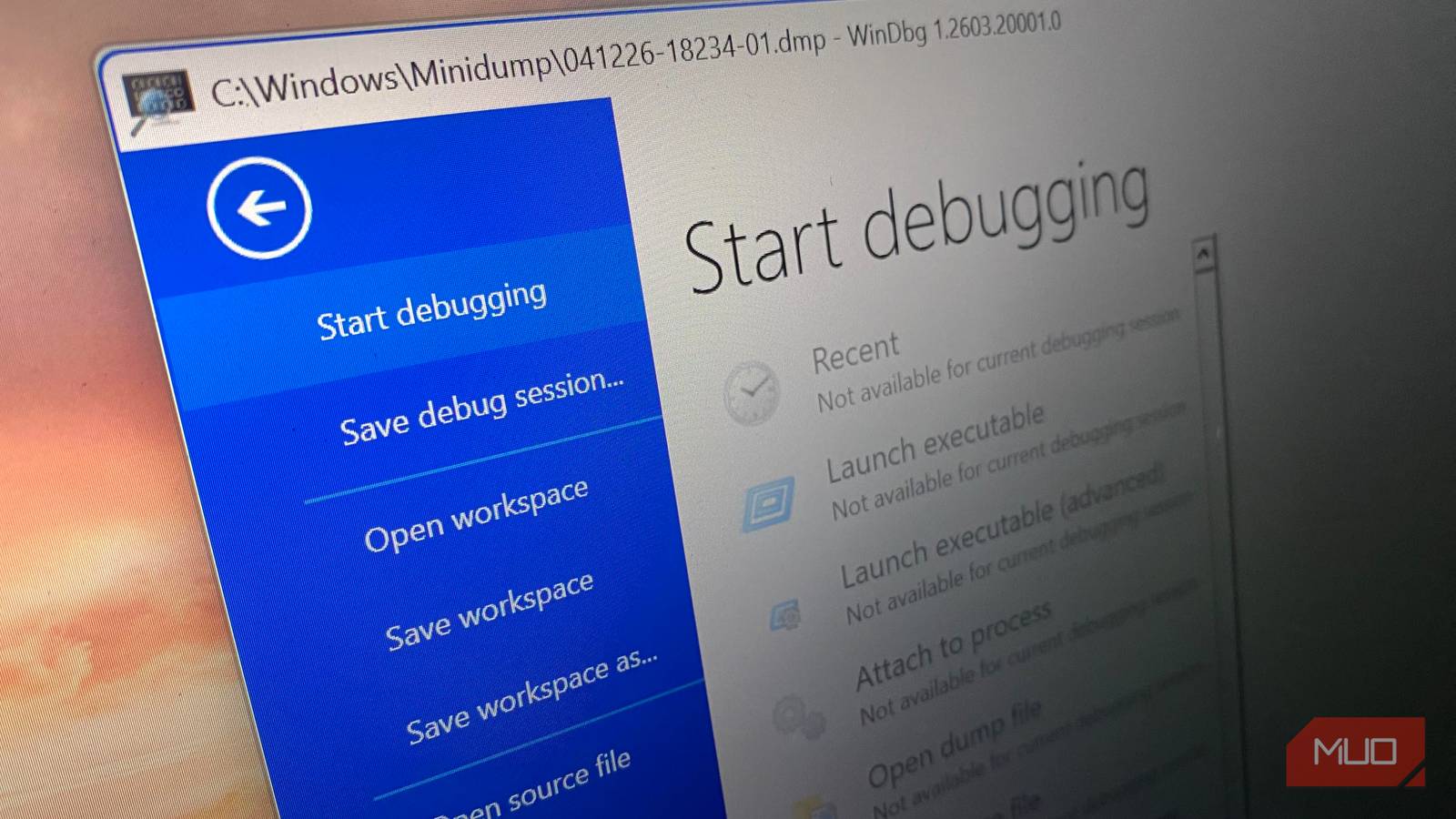
Once installed, open the tool, click on File -> Open dump file -> Browse button, and select your dump file, typically found in C:WindowsMinidumpCrash files are usually time-stamped, so it is easy to pick the most recent one. When you click Open, the tool will start debugging the crash file, and the process may take a few minutes. After the symbol load finishes, WinDbg still won’t be able to display readable names until the symbols are downloaded. These symbols translate raw memory addresses into driver files, system functions, and module identifiers.
Now you need to set up a path so that WinDbg can connect to Microsoft’s symbol server, where it resolves addresses to names/symbols.
To set it up, follow these steps:
- Navigate to File and click Settings.
- Select Debugging Settings, click on Symbol Path, then enter the path:
srv*C:Symbols*https://msdl.microsoft.com/download/symbols
The command that turns a crash into an explanation
Why !analyze -v is the most useful debugging shortcut in Windows

With the dump loaded in WinDbg and the symbol path configured, all that’s left is to run the command !analyze -v from the WinDbg command window.
Adding the -v flag is important to enable verbose output. If you omit this flag, the result is condensed and may omit fields that help you identify the crash trigger. Once you get an output, you can wade through the noise by focusing on just these few fields that tell you the cause:
Field | What it tells you |
|---|---|
IMAGE_NAME | This is your lead that points to the driver most associated with the crash |
SYMBOL_NAME | A readable identifier like nvlddmkm+0x5a3b21—often the fastest thing to search |
FAULTING_MODULE | The memory region where the fault physically occurred |
FAILURE_BUCKET_ID | A crash pattern fingerprint Windows uses to group similar failures |
STACK_TEXT | The sequence of function calls leading up to the crash |
If IMAGE_NAME and FAULTING_MODULE differ, start by investigating IMAGE_NAME, as it is typically more actionable.
The results you get after running this process will be different depending on the cause of the crash. So you will probably see nvlddmkm.sys (NVIDIA) or amdkmdag.sys (AMD) in the IMAGE_NAME when it’s a GPU crash. For a controller issue, you would get results pointing to a disk driver. However, there are times when the Windows kernel isn’t broken, and a value like ntoskrnl.exe may be a sign of bad RAM.
Results may not always paint the full picture
Windows dump files are usually the starting point. If, after several crashes, the results are similar, it’s a strong signal to narrow down the cause. The same IMAGE_NAME would mean a software-specific problem, and the fix could be updating the software or driver, rolling it back, or even uninstalling the driver. Sometimes it helps to run the driverquery command to get a full list of what’s currently loaded on your device. If you don’t get a consistent pattern from analyzing different crash files, you are likely to face system-level instability. This is where tools like BlueScreenView come in handy. It gives you the suspected driver for each crash in a single view. With this tool, you do not need to open the dumps one by one to spot patterns.
However, not all crashes are software-related. For hardware-related causes, you can start by using the built-in Windows Memory Diagnostic (mdsched.exe). It’s not the ultimate tool, though, because if the errors only happen under severe memory pressure, it may miss them since it only runs within the Windows environment. MemTest86 is a more thorough option that can run from a bootable USB.
That said, in WinDbg, the most useful signal is the pattern of the dump results. Consistent dump results are likely software-related, while shifting results may indicate hardware failure.
